Try with your file
Drop your bank statement (PDF)
1 file · 100 pages max · Free preview of 2 pages
1 file selected
Save hours every week
Turn your bank statements (PDF) into Excel, CSV or OFX, without manual retyping.
Drop a PDF statement and watch the extraction happen live. Instant preview, no signup required.
You open QuickBooks or Xero, search for your bank in the connection list, and it is not there. Or the feed works today but does not include the historical period you need. You do not have to type the statement line by line: both platforms document a manual CSV import route. This guide shows how to convert a PDF when necessary, prepare the columns, upload the file yourself and review every row before it reaches the ledger.

Why Some Banks Don’t Have a Direct Feed
A manual import is useful in several concrete cases:
- The bank or account type does not appear in the software’s connection list.
- The feed did not retrieve the older period needed for a migration, audit or catch-up reconciliation.
- A bookkeeper received statements from a client but does not have permission to connect the bank.
- A closed or foreign account can provide statements but no active feed.
Intuit explicitly presents manual upload as the route when a user cannot connect a bank or needs transactions from an earlier period. Xero likewise documents manual statement import for accounts without a feed or for transactions missing before a feed started.
The CSV Import Method — How It Works
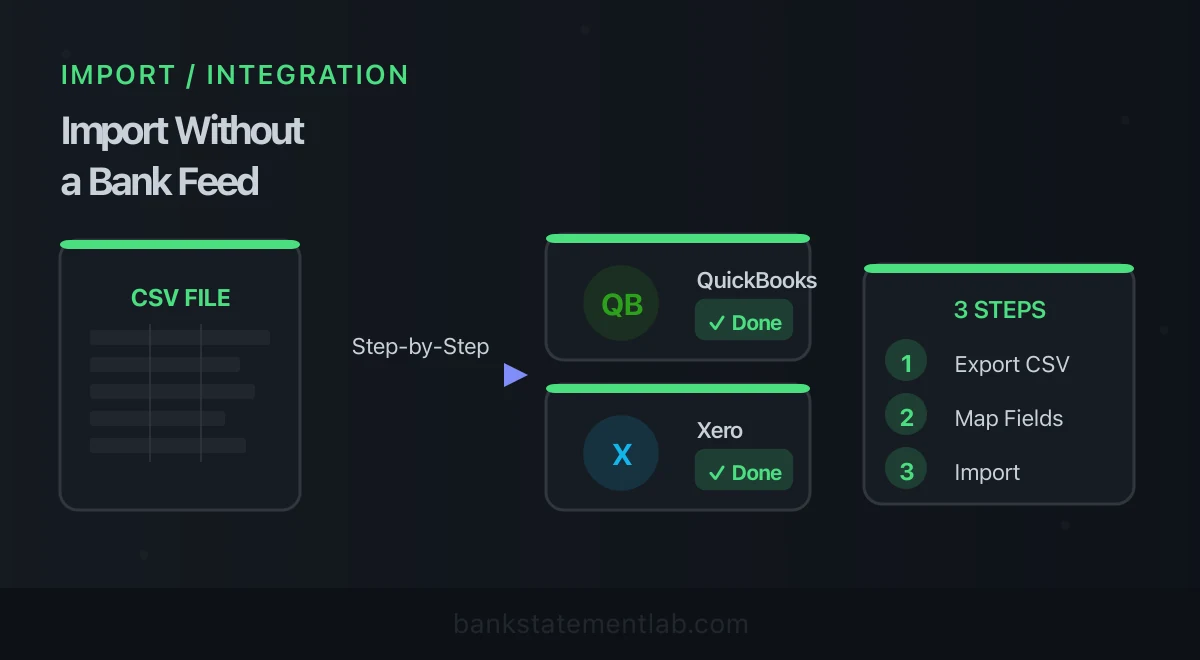
The principle is straightforward. Turn the source statement into a structured CSV, then adapt and map its columns to the fields the accounting software expects. Upload the file through the software’s own import tool, review the preview and complete the import before reconciliation.
The critical dependency is the quality of your CSV. Every accounting platform has specific requirements for column names, date formats, and numeric separators. Get those wrong, and the import will fail or produce corrupted data.
The two workflows covered here use these documented CSV structures:
| Software | Required columns | Date format | Decimal separator | Notes |
|---|---|---|---|---|
| QuickBooks Online | Date, Description, Amount or Date, Description, Credit, Debit | One consistent format | Period (.) | Transaction-list guidance: 350 KB and up to 1,000 lines |
| Xero | Date and Amount required; Payee, Description and Reference optional | Select a supported format during import | Period (.) | Headings make mapping easier; Xero maps the columns |
A few rules apply across all platforms:
- Use clear, unique column headers so mapping is easy to verify.
- Amounts should follow a consistent sign convention: negative for debits and positive for credits, or use separate debit/credit columns as required.
- Remove any summary rows, opening/closing balance lines, or footer text that your bank may have appended to the export.
Check whether a direct PDF import is available first
Intuit now documents English-language PDF and image statement uploads in QuickBooks Online. Check availability in your edition and region, review the extracted rows in its side-by-side view, and confirm the destination account. Xero also documents PDF statement import, currently for organizations in Canada and the United States, excluding the Xero Ledger plan. Confirm current bank and file support before relying on it.
If the direct route is unavailable or you need a separately reviewed working file, convert the PDF to CSV and use the steps below. Prefer a compatible structured bank download when one covers the required account and period.
Step-by-Step: Import Your Bank Statement into QuickBooks
Step 1 — Prepare your CSV file.
Open your CSV in a spreadsheet editor and verify the structure: clear headers in row 1, one transaction per row after that, and one consistent date format. Remove rows that are not transactions, such as subtotals and account summaries. For this structured-list route, follow Intuit’s current file guidelines, including its 350 KB guidance and 1,000-line limit.
Step 2 — Navigate to the Bank Transactions screen.
In QuickBooks Online, open All apps → Accounting → Bank transactions. Select the destination account tile if it already exists; otherwise the upload flow lets you create the account.
Step 3 — Open the file upload tool.
Click the Link account dropdown button in the top-right corner of the screen. From the dropdown menu, select Upload from file. You will be prompted to either drag and drop your CSV file or browse to it on your computer.
Step 4 — Map your columns.
QuickBooks will display a column mapping screen. Use the dropdown menus to match each column in your file to the corresponding QuickBooks field: Date, Description, and either a single Amount column or separate Credit and Debit columns. Confirm the mapping once it looks correct.
Step 5 — Review and select transactions.
QuickBooks presents a preview of the transactions it will import. You can deselect any rows you do not want to import (for example, a duplicate of a transaction already recorded). Review for obvious formatting errors — if dates appear garbled, the format is likely wrong and you should go back to correct the CSV before re-uploading.
Step 6 — Confirm the import.
After selecting the rows, choose Continue, confirm with Yes, then select Done. Review, categorize, match and reconcile the uploaded transactions in QuickBooks rather than assuming the import completed the bookkeeping.
Step-by-Step: Import Your Bank Statement into Xero
Step 1 — Prepare your CSV file.
Xero requires Date and Amount to create bank statement lines; Payee, Description and Reference are optional but make reconciliation easier. A header row is not mandatory, but Xero says headings make the columns easier to map. Its official CSV import guide lists supported date formats and explains the signed Amount column.
Step 2 — Navigate to your bank account.
In Xero, go to Accounting → Bank accounts and locate the destination bank or credit-card account.
Step 3 — Open the import tool.
Open the account’s three-dot menu and select Import a Statement. On the import page, you can download Xero’s regional CSV template if you want headings that match its statement fields.
Step 4 — Upload and review.
Select or drag in the CSV, choose Next, map the columns and select the date format if prompted. Review the parsed rows, clear any transaction you do not want to import, and choose Complete import only after the count, dates and amounts match the source.
Step 5 — Reconcile.
Once imported, the statement lines are available in the Xero reconciliation workflow. Review them against the source file and use Xero’s own matching and reconciliation controls before accepting them.
Working from a PDF instead of a bank export? Convert the bank statement PDF to Excel or CSV with BankStatementLab, review the rows, adapt the columns to the official QuickBooks Online or Xero format and complete the import manually.
Common Import Errors and How to Fix Them
Even a well-prepared CSV can produce import errors. The table below covers common patterns and controlled fixes.

| Error message | Probable cause | Fix |
|---|---|---|
| ”Date format not recognized” | Date column mixes formats, contains extra text or was mapped incorrectly | Convert the entire column to one supported format, re-export, then select the matching format during import |
| ”Amount column mismatch” | You have two separate Debit/Credit columns but the software expects a single signed Amount column, or vice versa | For numeric, unsigned Credit in C and Debit in D, with exactly one nonzero value per row, use =N(C2)-N(D2) in a working copy; flag rows with both sides filled and map only the checked result |
| ”Duplicate transactions detected” | The date range of your import overlaps with transactions already in the system (e.g., from a previous partial import or a live feed) | Compare account, reference, amount, date and narrative against existing transactions. Exclude only confirmed duplicates; another valid payment may share the same date |
| Description-field error | The target importer rejects a character or formatting sequence in a description | Follow the product’s error guidance and edit only the affected value in a copy of the CSV |
| Amount appears as zero or invalid | The amount field is mapped incorrectly, stored as text, or uses incompatible separators | Map the correct column, convert it to plain numbers and verify sample values in the preview |
| File size or line limit exceeded | The CSV exceeds the limit documented for that import route | Split it into non-overlapping date ranges and import them sequentially |
When Manual Import Isn’t Enough
The CSV import method is fundamentally a manual process that must be repeated for each account and period. Its limitations become clearer as the number of source statements grows.
Volume. More transactions mean more files to prepare, check and upload. Split files only when the accounting platform requires it, and keep the date ranges non-overlapping.
Multi-account complexity. If your business operates several accounts — operating account, payroll account, savings, expense card — each needs a separate import cycle. The administrative burden multiplies.
Historical backfill. Importing several statement periods to set up a new accounting system remains a project even when PDF extraction is automated, because each file still needs review, upload and reconciliation.
Audit readiness. When a reconciliation discrepancy surfaces three months after an import, tracing it back through manually prepared CSV files is time-consuming and difficult to document clearly.
When the source exists only as PDF, BankStatementLab can automate the PDF-to-CSV extraction step. The result is a general structured transaction file, not a platform-specific posting file: check it, reshape columns when necessary, then upload it through QuickBooks Online or Xero yourself. BankStatementLab can also generate OFX 1.6 SGML for supported current/checking and savings accounts, but it does not provide a live bank feed, a direct accounting connector, QBO export or automatic ledger posting. Its credit-based pricing scales with the pages you process.
This also applies to accountants managing multiple client accounts. The bank statement workflow for accounting firms covers source traceability, review, export choices and volume options for recurring client work. Batch extraction can reduce repeated PDF handling, but every client’s dates, signs, account mapping and import destination still need review. See how to batch-convert bank statement PDFs to a spreadsheet for the detailed extraction procedure.
Compare bank movements with your books
For a separate review after import, export the bank-account entries from your books and compare them with the processed statements in BankStatementLab. The bank reconciliation workflow gives you proposed matches to approve and an Excel, CSV or PDF report of matched and unmatched items. Posting adjustments remains in your accounting system.
Frequently asked questions
Can I import transactions into QuickBooks or Xero if my bank has no feed?
Yes. Both products document manual CSV imports. QuickBooks also supports English PDF/image statements in supported editions, and Xero offers PDF import in eligible regions and plans. Check the route available in your account. For CSV, QuickBooks uses Date, Description and Amount or separate Credit and Debit; Xero requires Date and Amount. Review the imported rows before completing the workflow.
Why does my CSV import fail with a date format error?
A date error usually means the column mixes formats, contains extra text or was mapped incorrectly. Keep the whole column in one supported format, select that format during import when prompted, and stop if the preview shows a different date from the source statement.
My CSV has separate debit and credit columns but the software wants a single Amount column. What do I do?
Work on a copy. If Credit is column C and Debit is D, both contain unsigned numeric values or blanks, and exactly one side is nonzero per transaction, use =N(C2)-N(D2). First check that amounts are real numbers: N treats text as zero. Flag rows with both sides populated instead of silently dropping one. Keep the original columns in the master and export only the mapped fields required by the destination.
How do I import historical transactions that a bank feed will not fetch?
Use a manual import for the period missing from the feed. Prefer a compatible bank download; otherwise check the direct PDF route available in your edition or convert the PDF to a reviewed CSV. For QuickBooks Online transaction-list uploads, follow the documented 350 KB and 1,000-line limits and split larger files without overlap.
What should I strip out of a bank export before importing it?
Remove everything that is not an individual transaction: subtotals, account summaries, opening and closing balance lines, footer text and empty rows. Use clear, unique headers to make column mapping easier, and verify that every remaining row represents one transaction.
Why do my imported amounts all show up as zero?
Check that the amount column was mapped to the correct field and contains plain numeric values rather than currency text. Also compare its decimal and thousands separators with the target product’s import format. Make the correction in a copy of the CSV and verify several values in the preview before completing the import.
Conclusion
Not having a bank feed does not require line-by-line retyping. Use a compatible bank-supplied file, an available direct statement-import route, or a checked PDF-to-CSV conversion. Verify the source, account, dates and amounts, then reconcile the import.
Date formatting and column mapping are frequent failure points. The error table above gives a controlled way to diagnose them before committing rows to the ledger.
If you are working from PDF statements rather than bank exports, BankStatementLab supplies CSV, XLSX, JSON or OFX 1.6 SGML transaction data for supported current/checking and savings-account workflows. It does not create QBO files or import into the accounting platform for you. Test an OFX file against the exact destination before importing a full period. Create your account — 5 credits are included to process your first statements.
Related Articles
Ready to simplify your accounting?
Eliminate manual entry and focus on analysis and advisory.