Try with your file
Drop your bank statement (PDF)
1 file · 100 pages max · Free preview of 2 pages
1 file selected
Save hours every week
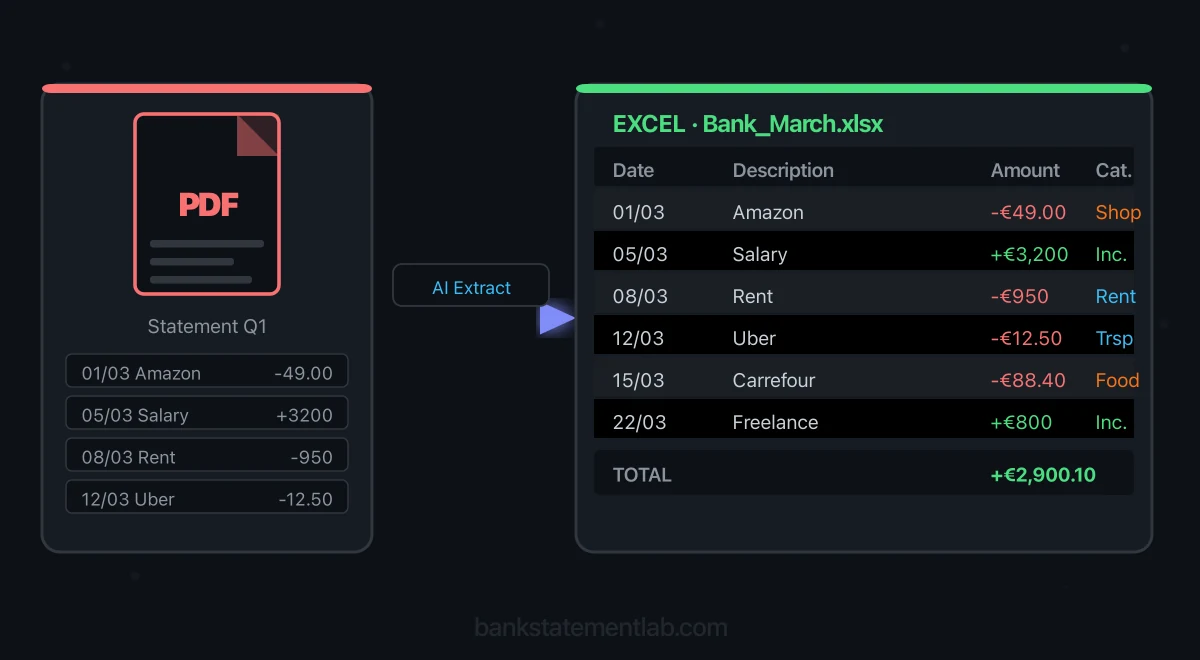
Turn your bank statements (PDF) into Excel, CSV or OFX, without manual retyping.
Drop a PDF statement and watch the extraction happen live. Instant preview, no signup required.
You have a stack of bank statement PDFs sitting in your downloads folder. Tax season is approaching, your bookkeeper is asking for transaction data, and your accounting software needs structured input. The problem? Your bank only gives you PDFs. What you actually need is a spreadsheet. Learning how to convert bank statement PDF to Excel is one of the most practical skills for anyone managing their own finances or running a small business. In this guide, we walk through every method available, from manual copy-paste to fully automated extraction, so you can pick the approach that fits your workflow and budget.

Why Converting Bank Statements to Excel Matters
Bank statements in PDF format are designed for reading, not for working with data. They look clean on screen, but the moment you need to sort, filter, calculate, or import that information into another tool, the PDF format becomes a wall. Converting your bank statements into Excel unlocks a range of possibilities that simply are not available in a static document.
For freelancers, having transaction data in a spreadsheet means you can track business expenses separately from personal ones, categorize deductions for tax filing, and prepare cash summaries for bookkeeping. A complete profit-and-loss statement also needs the appropriate invoice, asset, liability and tax adjustments.
For small business owners, Excel bank data enables proper cash flow analysis, vendor payment tracking, and bank reconciliation against your books. When your accountant asks for supporting documents, a well-organized spreadsheet helps review, while the original PDFs remain supporting records.
For individuals, converting statements to Excel helps with budgeting, spotting unauthorized charges, and planning major financial decisions based on actual spending patterns.
Here is how different personas typically use converted bank statement data:
| Persona | Primary Use Case | Secondary Use Case | Frequency |
|---|---|---|---|
| Freelancer | Tax deduction tracking | Invoice reconciliation | Monthly |
| Small business owner | Bank reconciliation | Cash flow forecasting | Weekly |
| Individual | Personal budgeting | Dispute resolution | Monthly |
| Bookkeeper/Accountant | Client account management | Audit preparation | Daily |
Use Excel when you need to inspect or calculate the transaction data; keep the original statement alongside it.
Methods to Convert Bank Statement PDF to Excel
There are four main approaches to getting your bank statement data from a PDF into a spreadsheet. Each comes with trade-offs in terms of time, accuracy, cost, and the type of PDFs it handles well.
Method 1: Manual Copy and Paste
The most basic approach. You open your bank statement PDF, select the transaction table, copy it, and paste it into Excel.
How it works:
- Open the PDF in any reader
- Select the table area with your cursor
- Copy (Ctrl+C / Cmd+C) and paste into Excel (Ctrl+V / Cmd+V)
- Manually fix the formatting
The reality: Results depend on the PDF structure. Many PDF tables are positioned text rather than a spreadsheet grid. They are text elements positioned to look like columns. When you paste, dates merge with descriptions, amounts lose their decimal places, and multi-page statements create chaos. Check whether cleanup is manageable before copying a long statement.
Best for: Single-page statements with very simple layouts, or when you only need a few specific transactions.
Method 2: Adobe Acrobat or Online PDF Converters
Tools like Adobe Acrobat Pro and various free online converters (Smallpdf, ILovePDF, Zamzar) offer PDF-to-Excel export features.
How it works:
- Upload or open your PDF in the tool
- Select “Export to Excel” or “Convert to XLSX”
- Download the resulting spreadsheet
- Clean up formatting issues
The reality: These tools use general-purpose table detection algorithms. They work reasonably well for simple, text-based PDFs but struggle with the specific quirks of bank statements: multi-line transaction descriptions, running balance columns, page headers that repeat, and summary sections mixed in with transaction data. Scanned PDFs require OCR, which these tools handle with varying reliability.
Privacy note: An online converter receives a document containing account numbers, transaction details and balances. Check who operates it, why the file is processed, how long source and output data remain available, and how deletion works. Price alone says nothing about those safeguards.
Best for: Simple, text-based PDFs where you are comfortable with some manual cleanup afterward.
Method 3: OCR Tools for Scanned Statements
If your bank statements are scanned paper documents (image-based PDFs), you need Optical Character Recognition (OCR) to extract the text before converting it. Tools like ABBYY FineReader or Tesseract can process scanned documents.
How it works:
- Feed the scanned PDF into an OCR engine
- The tool recognizes characters from the image
- Export the recognized text into a structured format
- Import into Excel and clean up
The reality: General-purpose OCR has improved significantly, but financial documents present unique challenges. Numbers must be 100% accurate (a misread “3” as “8” changes your bank balance), currency symbols and decimal separators vary by region, and low-quality scans dramatically reduce accuracy. Without a verification step, you could end up with data that looks correct but contains subtle errors.
Best for: When scanned documents are your only option and you have time to verify every extracted number.
Method 4: Dedicated Bank Statement Extraction Tools
Purpose-built bank statement PDF to Excel converters such as BankStatementLab are specifically designed to understand the structure of financial documents. BankStatementLab uses text or vision extraction according to the document and selected mode, then groups compatible transaction tables. The extracted columns follow the source layout; review and map them for your spreadsheet.
How it works:
- Upload your bank statement PDF (native or scanned)
- The AI identifies the document structure and extracts transactions
- Review the extracted data in a preview
- Export to Excel with properly formatted columns
The reality: These tools are designed for edge cases that trip up generic converters: page breaks in the middle of transactions, multi-line descriptions, debit/credit separation and running-balance columns. The specialization reduces cleanup, but it does not remove the need to reconcile the output with the source.
Best for: Anyone who regularly converts bank statements and values accuracy and time savings.
Comparison Table
| Criteria | Copy-Paste | Adobe/Online Converters | OCR Tools | Dedicated Extraction |
|---|---|---|---|---|
| Review effort | Layout-dependent cleanup | Check column alignment | Check recognition and table structure | Check extracted rows and grouped tables |
| Validation | Compare with source | Compare with source | Compare with source | Compare with source |
| Cost | Your time only | Varies by vendor | Varies by vendor | See pricing |
| Scanned PDFs | No text to copy without OCR | Depends on OCR support | Yes | Yes, if supported |
| Multi-page | Manual page handling | Check repeated headers | Check page boundaries | Check all extracted tables |
| Financial data expertise | No | No | No | Yes |
| Best for | Quick peek | Simple PDFs | Scanned docs | Regular use |
Step-by-Step Conversion Guide
Here is a dedicated extraction workflow with a review stage. We will use BankStatementLab as the example since it is purpose-built for this task.
Step 1: Prepare Your PDF
Before uploading, make sure your PDF is complete and readable:
- Confirm all pages are included (check page count against your statement)
- If it is a scanned document, use a clear, straight image without cropped edges
- Make sure pages are not rotated or skewed
- Check that the file is not password-protected — a converter cannot read a file it cannot open, so open a locked statement PDF first and upload the unlocked copy
If you still have to fetch the file from your bank, the steps depend on the bank: here is how to download a bank statement from Indian net banking and mobile apps, including which format each channel lets you pick.
Step 2: Upload Your Bank Statement
Go to BankStatementLab and create an account. Once logged in:
- Open the upload area or drag and drop your PDF file
- The tool accepts both native (text-based) and scanned (image-based) PDFs
- The app accepts up to 50 MB and 100 pages per file, with up to 100 files and 500 MB per upload request
- Successful source files remain for up to 7 days; failed sources can remain up to 14 days
Step 3: Let the AI Process the Document
The extraction engine analyzes your document automatically:
- Transaction check - Confirms that individual account movements are visible
- Layout analysis - Identifies columns, headers, and transaction rows
- Data extraction - Pulls out each transaction with its date, description, and amount
- Structured output - Assembles the transactions into a table you can review before exporting
Processing time varies with page count, scan quality, queue load and extraction method. Wait for the preview, then review it before exporting.
Step 4: Review the Extracted Data
Before exporting, review the preview screen:
- Inspect every extracted table: the initially displayed table may not contain the entire statement
- Compare transaction counts page by page, plus amounts, signs and descriptions, with the original PDF
- Check all unclear values and page-boundary rows, and reconcile using the source balances; a zero difference alone does not prove completeness
- Check that dates are in the expected format
If something looks off, adjust it directly in the preview. Do not treat the absence of a warning as proof that the rows and totals match.
Step 5: Export to Excel
Select the relevant tables and the Excel export to download your .xlsx file. The output includes:
- Date and description columns based on the structure detected in the statement
- Amount, debit and credit fields represented as numeric values when recognized
- Editable cells so you can correct the review result before downstream use
After validation, the file is ready for analysis, a compatible accounting-software import, or sharing with your bookkeeper.
Excel or CSV? Pick the Format for What Happens Next
The same extraction can leave as an .xlsx file or as a CSV, so pick the one that matches the next step rather than converting twice.
| Format | Best for | Trade-off |
|---|---|---|
| Excel (.xlsx) | Analysis: formulas, pivot tables, conditional formatting | Heavier file, and not every accounting tool accepts it as an import |
| CSV | Importing into accounting software | Plain text only: no formulas, no formatting, no multiple sheets |
| OFX / QIF | Bank-feed style imports | BankStatementLab can generate OFX 1.6 SGML for supported current/checking and savings accounts; QIF is not available |
The rule of thumb: CSV for many manual imports, Excel to analyse, and OFX or QIF only when your exact destination accepts the generated format. Test BankStatementLab’s OFX output on a small period and reconcile it before importing a full statement.
Where the file lands next matters as much as its extension. QuickBooks Online now ingests a statement PDF directly, within its own size and transaction limits, and Xero offers PDF imports for eligible US and Canadian organizations. Availability depends on the product, region and plan; structured CSV or OFX remains useful when direct PDF import is unavailable. See Xero’s PDF requirements. Each platform has its own import screen and its own expectations about columns and date formats, so follow the guide that matches yours: importing a statement into accounting software when there is no bank feed, preparing a Xero-ready file, or taking a Chase statement into QuickBooks Online.

Before scaling the workflow, compare one representative export with the source statement and confirm row count, dates, signs and page boundaries. If useful, reconcile the transaction amounts against the balances printed on the source statement; those balances are not transaction rows in the export. Current plan limits and credit usage are listed on the pricing page.
Formatting Your Excel Output
Once your bank statement data lands in Excel, a few formatting steps will make it far more useful for analysis and reporting.
Set Up Your Column Structure
For the formulas below, map your actual export into this example structure. Keep account and currency identifiers when combining statements:
- A: Date - Transaction date, formatted as a date (YYYY-MM-DD or your regional preference)
- B: Description - Transaction description or payee name
- C: Debit - Outgoing amounts (positive numbers)
- D: Credit - Incoming amounts (positive numbers)
- E: Category - Optional, for expense categorization
Standardize Date Formats
Different statements use different date formats (DD/MM/YYYY, MM/DD/YYYY, YYYY-MM-DD). Pick one format and apply it consistently:
- Select the date column
- Right-click and choose “Format Cells”
- Under “Date,” select your preferred format
- For text dates, use Power Query Change Type > Using Locale with the statement’s date convention. DATEVALUE is suitable only when that convention matches your locale; formatting alone cannot fix an incorrectly parsed date.
Add Useful Formulas
F: Net cash movement (positive for receipts, negative for payments; these are not automatically income and expenses):
=D2-C2
Running category totals with SUMIF:
=SUMIF(E:E, "Office Supplies", C:C)
Monthly subtotals with SUMIFS:
=SUMIFS(C:C, A:A, ">="&DATE(2026,1,1), A:A, "<"&DATE(2026,2,1))
These formulas assume numeric debit and credit columns, with an unused side blank or zero, and valid Excel dates. Do not aggregate different currencies without a documented conversion. Formula separators may be semicolons in your locale.
Apply Conditional Formatting
Make large transactions stand out visually:
- Select your debit column
- Go to Home > Conditional Formatting > Highlight Cell Rules
- Set a rule to highlight amounts above a threshold (e.g., above $500) in red
- Apply a similar rule for large credits in green
This makes it easy to spot significant transactions at a glance during review.
Create a Pivot Table for Quick Analysis
Once your data is clean:
- Select the complete transaction range and create an Excel Table (Insert > Table)
- Insert a Pivot Table (Insert > PivotTable)
- Drag “Date” to Rows (group by year and month)
- Drag “Category” to Columns
- Drag “Debit” to Values and confirm Sum rather than Count; refresh the PivotTable after adding rows
In seconds, you have a monthly expense breakdown by category, which is exactly what you need for budgeting or tax preparation.
Verify Before You Import
Reviewing the extraction on screen is not quite the same thing as clearing a file for import. Before the spreadsheet goes anywhere near your books, run through a short checklist:
- Does the opening balance match the previous period’s closing balance?
- Does the closing balance match the balance printed on the statement?
- Does the row count match the number of transactions you expect for the period?
- Are the dates in the format your destination software expects?
- Are debits and credits on the right side?
- Is the file saved in the format and encoding the destination expects?
Two traps are worth calling out because they survive a quick glance at the file.
Phantom rows from duplicate pages and inserts. Bank statement PDFs often carry a duplicated page, a summary page, or a promotional insert alongside the transaction data. Anything that reads every page indiscriminately can turn those into extra rows. Comparing the row count against the transactions actually printed on the statement is what catches them, and catching them in the spreadsheet is far cheaper than unwinding duplicates once they have reached your ledger.
A reversed debit/credit convention. Some statements put every amount in a single column and rely on a sign, or on nothing at all, to distinguish money in from money out. Others use two columns. Check a deposit and a withdrawal explicitly: a deposit that lands as a withdrawal creates a double error, once on the amount and once on the direction.
Common Conversion Problems and Fixes
Even with the best tools, you may occasionally run into issues. Here are the most common problems and how to solve them.
Problem 1: Merged or Misaligned Columns
Symptom: Dates, descriptions, and amounts end up in the same cell or in the wrong columns.
Cause: The PDF did not use a real table structure. Text was positioned visually but not logically.
Fix: If using a generic converter, try the “Text to Columns” feature in Excel (Data > Text to Columns). Use “Fixed Width” and manually set column breaks. For recurring statements with the same layout, save this as a template. Better yet, use a dedicated tool that handles bank statement layouts natively.
Problem 2: Dates Interpreted as Text or Numbers
Symptom: Dates appear as five-digit numbers (like 45678) or as text strings that Excel does not recognize as dates.
Cause: Excel serial date numbers, or date formats that do not match your system locale.
Fix: For serial numbers, format the cells as dates. For text dates, import with the source locale. =DATEVALUE(A2) depends on your locale, so test ambiguous dates against the statement before filling down.
Problem 3: Missing Transactions
Symptom: The converted spreadsheet has fewer rows than expected. Some transactions from the PDF are not present.
Cause: Page break handling failures, or transactions on pages that were not processed (especially common with scanned documents where a page might have poor image quality).
Fix: Compare the transaction count in your spreadsheet against the original PDF. As an external check, reconcile the extracted transaction amounts against the opening and closing balances printed on the source statement; those balances are not extracted as transaction rows. If the figures do not reconcile, data may be missing. Re-process the specific pages that were skipped, and keep the original statement open beside the spreadsheet while you check, so a missing page is obvious straight away.
Problem 4: Character Encoding Issues
Symptom: Special characters appear as question marks, boxes, or garbled text. Currency symbols (EUR, GBP) display incorrectly. Accented characters in payee names are corrupted.
Cause: Encoding mismatch between the PDF extraction and the spreadsheet application.
Fix: When opening CSV files in Excel, use “Data > Get Data > From Text/CSV” instead of double-clicking the file. This lets you specify UTF-8 encoding. For .xlsx files, this is rarely an issue since the format handles Unicode natively.
Problem 5: Decimal Separator Confusion
Symptom: An amount of 1,234.56 appears as 1.23456 or 123456, or amounts with comma decimals (European format: 1.234,56) are misread.
Cause: Regional format differences. Some countries use a period as the decimal separator, others use a comma.
Fix: Import using the source locale. For a text amount in A2 such as 1.234,56, =NUMBERVALUE(A2,",",".") converts the specified decimal and grouping separators without changing other columns. Guard blank cells separately because NUMBERVALUE treats empty text as zero. Check the result against the PDF. See Microsoft’s NUMBERVALUE documentation.
Problem 6: Comma or Semicolon Delimiter (CSV Only)
Symptom: Every value lands in a single column, or the columns split in the wrong places when you open the CSV.
Cause: The delimiter in the file does not match the one the reading application expects. Many European systems expect a semicolon rather than a comma, because the comma is already in use as the decimal separator.
Fix: Check the delimiter setting on the import side first — in Excel, “Data > Get Data > From Text/CSV” lets you choose it explicitly instead of guessing. If your accounting software insists on semicolons, use a CSV-aware export or conversion tool with that delimiter. A global replacement can corrupt punctuation inside quoted descriptions and decimal amounts; reopen the resulting file and check fields and totals. This problem does not exist with .xlsx files, which is one reason to export Excel when the file is for your own analysis.
Compare bank movements with your books
Once the statement rows are checked, BankStatementLab can compare them with your accounting export. Its bank reconciliation report separates suggested pairs from bank-only and accounting-only entries, lets you approve the proposals, and exports Excel, CSV or PDF for review.
Frequently Asked Questions
Why does copying a bank statement table from a PDF into Excel sometimes paste incorrectly?
Because many PDF tables are positioned text rather than a spreadsheet grid. They are text elements positioned on the page to look like columns, so when you paste them into Excel, dates merge with descriptions, amounts lose their decimal places, and multi-page statements produce chaos. Excel’s Text to Columns feature with fixed-width breaks can partially rescue a simple layout, but a tool built for bank statement structures can reduce cleanup. Its output still needs review.
Can I convert a scanned bank statement PDF to Excel?
Yes, but only with a tool that reads images rather than text: a scanned statement is a picture, so there is no text layer to copy. Optical character recognition or a vision extraction engine is required, and scan quality drives the result. Use clear, straight pages and verify figures afterwards, because a misread character can silently change a balance.
How do I know whether my converted bank statement is missing transactions?
Compare the number of rows in your spreadsheet against the number of transaction lines in the original PDF. You can also use the opening and closing balances printed on the source statement as an external reconciliation check; they are not transaction rows in the extracted output. If the figures do not reconcile, data may be missing — usually because of a page break handling failure or a page whose image quality was too poor to process. Re-process the skipped pages, and run that check page by page rather than on the total, because a whole missing page is far easier to spot that way.
Why do dates from my bank statement appear as five-digit numbers in Excel?
Those five-digit values are Excel serial date numbers, and the cells are simply formatted as numbers instead of dates. First confirm that they represent the expected dates, then apply a date format. For text dates, use the source locale during import; DATEVALUE depends on regional settings and can misinterpret ambiguous day/month dates.
Why are amounts like 1.234,56 read incorrectly after converting a bank statement?
Because the decimal separator in the statement does not match the one your spreadsheet expects: some countries use a period as the decimal separator and a comma for thousands, others do the opposite. Import the amount column using the source locale, or use NUMBERVALUE with explicit decimal and grouping separators. Do not globally replace punctuation: it can corrupt descriptions, decimals and CSV fields.
Is it safe to upload a bank statement to an online PDF converter?
A bank statement carries your account number, balances and transaction history, so read the provider’s current privacy and retention terms before uploading it. BankStatementLab retains successful source files for up to 7 days; a failed extraction can be retained for up to 14 days for retry and diagnosis. Extracted data remains until manual deletion unless an authenticated user enables automatic deletion; that option runs from 1 to 30 days and is initially set to 14 days when enabled.
Conclusion
Converting a bank statement PDF to Excel does not have to mean retyping every line. The right approach depends on your situation: a manual method can be enough for a simple one-page statement, while repeated or scanned documents benefit from a dedicated extraction and review workflow.
To recap the key takeaways:
- Manual copy-paste is unreliable for anything beyond the simplest statements
- Generic converters work for basic PDFs but struggle with financial document quirks
- OCR tools are necessary for scanned documents but require verification
- Dedicated extraction tools are designed for statement-specific layouts and still require reconciliation
The most important step, regardless of method, is always to verify your output. Check all tables, page-by-page transaction counts, signs and uncertain values against the original PDF. If you use opening and closing balances for reconciliation, read them from the source statement; they are not transaction rows in the extracted output.
Ready to test the workflow on your own file? Try BankStatementLab, review the extracted rows, and export to XLSX, CSV or JSON. Current credits, limits and plans are shown on the pricing page.
External Resources
Related Articles
Save hours every week
Go from PDF to an Excel file ready to use, with no manual data entry.