Save hours every week
Turn your bank statements (PDF) into Excel, CSV or OFX, without manual retyping.
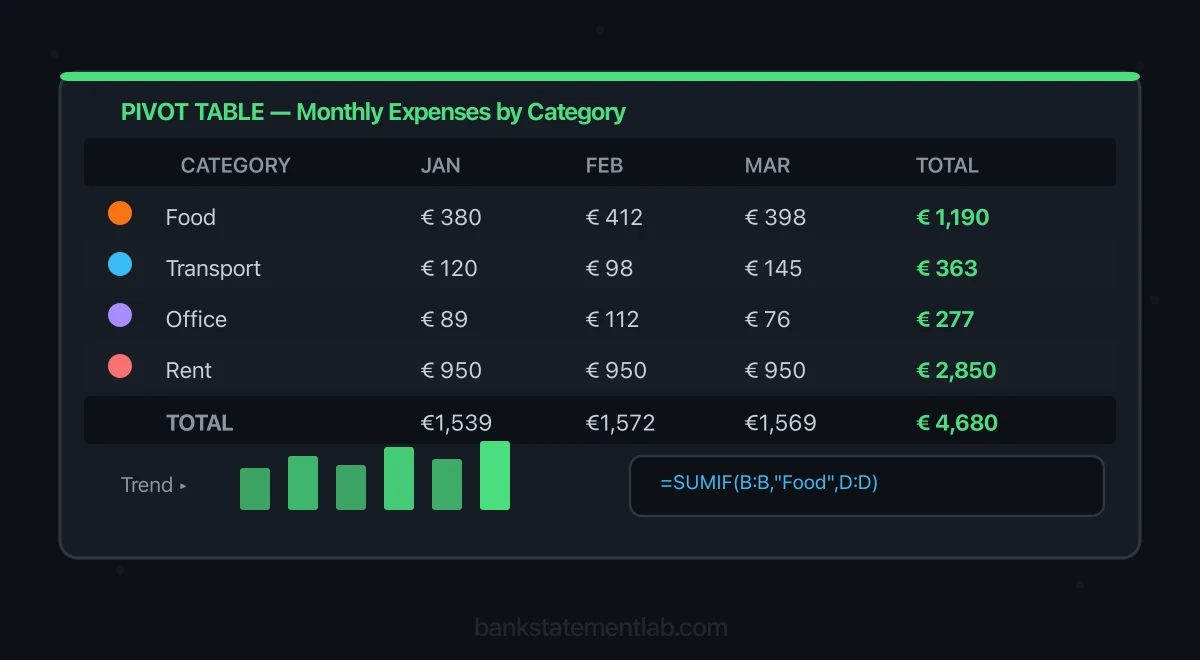
A pivot table can turn a transaction list into a useful monthly spending view, but the pivot table is the last step—not the categorization engine. First you need clean rows, a consistent category list, and a reviewable rule table.
This tutorial shows a controlled Excel workflow for categorizing bank transactions. It works best when you use a native CSV export from your bank. If the bank only gives you a statement PDF or image, convert it to structured rows, then compare the result with the original before you categorize anything.
What this workflow produces
Your workbook will contain three parts:
- A Transactions table with one row per bank movement.
- A Rules table that maps description keywords to categories.
- A PivotTable that summarizes outflows by category and month.
The rules make repeated descriptions easier to handle, while a Review column keeps unmatched or ambiguous rows visible. Excel is applying rules you define; it is not deciding the accounting or tax treatment for you.
Step 1: start with the best available source
Use the bank’s native CSV or spreadsheet export when it covers the period and accounts you need. It avoids an extra extraction step and usually preserves transaction identifiers and columns that a statement may not display.
When only a PDF, JPEG, PNG, or WebP statement is available, convert it into CSV or XLSX. Keep the original statement as evidence and perform these checks before continuing:
- opening balance plus net movements agrees with the closing balance;
- the first and last transactions are present;
- dates, signs, decimal separators, and currencies are correct;
- multi-line descriptions remain attached to the right amounts;
- no headers, footers, or carried balances became transactions.
For a broader extraction and review checklist, see the general PDF-to-spreadsheet conversion guide.
Step 2: build a proper Transactions table
Keep one header row and one transaction per row. A practical structure is:
| Date | Description | Money In | Money Out | Account | Currency | Category | Review |
|---|---|---|---|---|---|---|---|
| 2026-01-05 | ACME CLOUD HOSTING | 89.00 | Operating | EUR | Software | ||
| 2026-01-07 | CITY RAIL | 42.50 | Operating | EUR | Travel | Check purpose | |
| 2026-01-10 | CLIENT ALPHA | 2,400.00 | Operating | EUR | Client receipts |
Select the range and choose Insert → Table. Name it Transactions under Table Design. An Excel Table expands formulas and gives the PivotTable a stable source.
Do not merge cells, insert subtotal rows, or mix currencies without a separate Currency column. If several accounts are combined, add an Account column so transfers can be identified instead of counted as income or expense.
Step 3: define categories for your reporting purpose
There is no universal category list. Categories depend on the business, chart of accounts, jurisdiction, accounting method, and the question you want the pivot to answer.
A small operating view might use:
- Client receipts
- Rent and premises
- Payroll and contractors
- Software
- Marketing
- Travel
- Bank and payment charges
- Taxes paid
- Owner movements
- Loan movements
- Transfers
- Needs review
Treat this list as an internal analysis structure, not tax advice. Your accountant may need different accounts or separate treatment for capital purchases, sales taxes, loan principal, owner drawings, and mixed-use costs.
To reduce inconsistent spelling, place the category list on a separate sheet and use a named range for Excel data validation. Microsoft documents how to apply data validation to cells.
Step 4: create an auditable Rules table
On a Rules sheet, create an Excel Table named Rules:
| Priority | Keyword | Category | Note |
|---|---|---|---|
| 10 | ACME CLOUD | Software | Monthly hosting |
| 20 | CITY RAIL | Travel | Confirm business purpose |
| 30 | BANK SERVICE | Bank and payment charges |
Sort the Rules table by Priority in ascending order and put specific keywords before broad ones. The Priority numbers do not sort the table automatically. Avoid a generic keyword such as “PAYMENT” that could match unrelated rows.
In Microsoft 365, add a RuleMatches column to Transactions first:
=SUMPRODUCT(--(Rules[Keyword]<>""),--ISNUMBER(SEARCH(Rules[Keyword],[@Description])))
Then use this formula in Category:
=IF([@RuleMatches]<>1,"Needs review",XLOOKUP(1,(Rules[Keyword]<>"")*ISNUMBER(SEARCH(Rules[Keyword],[@Description])),Rules[Category],"Needs review"))
Blank keywords are excluded, and only a single matching rule assigns a category. Zero matches or multiple matches return Needs review. Keep every rule’s Category populated and review blank or space-only keywords before using the table. SEARCH matches substrings without case sensitivity and treats * and ? as wildcards; use plain, specific keywords for this tutorial.
For example, adding both ACME and ACME CLOUD makes ACME CLOUD HOSTING match two rules. This workflow flags the ambiguity rather than silently choosing whichever row appears first. Remove the redundant rule or document an explicit priority policy before allowing a first-match approach.
Microsoft documents XLOOKUP’s first-match behavior and version availability. XLOOKUP is unavailable in Excel 2016 and 2019. The formulas here use English function names and comma separators; your Excel locale may require translated names or semicolons.
When VLOOKUP is appropriate
VLOOKUP can map an exact normalized merchant key to a category. For that design, add a NormalizedMerchant column to Transactions and create a separate two-column table named ExactRules, with Normalized Merchant first and Category second:
=IFERROR(VLOOKUP([@NormalizedMerchant],ExactRules[[Normalized Merchant]:[Category]],2,FALSE),"")
The lookup column must be the first column of that range, and the normalized merchant value must match a rule key. A formula that looks up "*"&[@Description]&"*" does not test whether each rule keyword appears inside a longer description; it searches in the opposite direction. Use the SEARCH/XLOOKUP approach above for keyword-within-description matching. Microsoft documents VLOOKUP’s lookup-column behavior in its VLOOKUP reference.
Add ManualCategory for reviewed decisions and FinalCategory for the value used in reports:
=IF([@ManualCategory]<>"",[@ManualCategory],[@Category])
Then add the Review formula:
=IF(OR([@FinalCategory]="",[@FinalCategory]="Needs review"),"Needs review","")
Filter Review = Needs review and record decisions in ManualCategory so refreshing the rule formula does not erase your work. Point the PivotTable to FinalCategory. Keep the evidence and reviewer note for a manual decision; a blank Review flag means a label exists, not that the business purpose has been verified. Add a new keyword only when it will reliably describe future transactions. Merchant descriptions can change, and the same merchant can support both business and personal purchases.
Step 5: review transfers, credits, and mixed-purpose rows
Keyword rules are useful for repetition, but these rows need deliberate treatment:
- Transfers between your own accounts: tag both sides consistently and exclude them from operating income and expense totals.
- Loan proceeds and principal payments: separate financing movements from operating activity.
- Merchant credits and reversals: link them to the original category instead of treating them as new revenue.
- Payroll: confirm whether the bank amount is a net payroll settlement while taxes and other liabilities sit elsewhere.
- Mixed-purpose purchases: retain the supporting document and record only the supported business portion.
- Unknown deposits: use invoices, settlement reports, or contracts to identify the source; the bank description alone may not prove it.
The IRS notes that supporting documents may need to be combined to establish the payee, amount, date, and business purpose. Its business recordkeeping guidance is a useful US reference; follow the rules for your own jurisdiction.
Step 6: build the PivotTable
Click inside the Transactions table, then choose Insert → PivotTable. Excel’s official PivotTable overview explains the field model.
For a monthly outflow report:
- Rows: FinalCategory
- Columns: Date
- Values: Sum of Money Out
- Filters: Account, Currency, Review
Right-click a date in the PivotTable and group by Months and Years if Excel recognizes the source as real dates. Keep Years as well as Months when the data crosses a calendar year.
Useful companion pivots include:
- inflows by source and month;
- outflows by account and category;
- uncategorized transaction count;
- owner, loan, and transfer movements in a separate financing view.
If Values shows Count of Money Out, check whether the amounts were imported as text. Convert them to numbers before selecting Sum. A Money Out pivot shows gross outgoing cash; a refund in Money In will not reduce that total. For net spending, build a separate reviewed measure that subtracts refunds in the same expense category.
A pivot summarizes the rows it receives. It does not detect missing statements, duplicated transactions, wrong signs, or a bad category rule.
Step 7: add control totals
Before relying on the chart or totals, add a small control sheet:
| Control | Expected result |
|---|---|
| Transaction count | Agrees with reviewed source rows |
| Total money in | Agrees with statement credits for the period |
| Total money out | Agrees with statement debits for the period |
| Unmatched categories | Zero, or a documented exception list |
| Transfer pairs | Both sides identified |
| Currency and account | No unintended mixing |
Refresh the PivotTable after any rule or source change. Preserve a copy of the original import and record who reviewed exceptions and when.
Updating the workbook next month
If each monthly export uses the same columns, Power Query can append files from a dedicated folder. Microsoft documents both importing data from a folder and the broader Power Query workflow.
Keep that automation narrow:
- place only same-schema source files in the folder;
- append and normalize columns;
- load into the Transactions table;
- refresh rules and pivots;
- review exceptions and control totals.
Excel rules versus automated categorization
This article deliberately uses explicit Excel rules. That makes the logic visible, editable, and testable. A separate guide to automated transaction categorization covers other approaches.
BankStatementLab turns supported statement PDFs and images into rows for this analysis. To check those transactions against your books, its separate bank reconciliation report compares processed statements with an accounting export, suggests matching pairs and keeps unmatched items visible. Review and approve the proposals, then download Excel, CSV or PDF. Your category policy and supporting documents still determine classification; matching a payment does not assign its tax treatment.
Related articles
- Analyze cash-flow warning signs in bank statements
- Review automatic transaction categorization
- How to Prepare Bank Statements for Your Accountant
- Why Bank Statement Layouts Break Generic Parsers
Convert a supported bank statement into reviewable Excel rows with BankStatementLab
Ready to simplify your accounting?
Eliminate manual entry and focus on analysis and advisory.