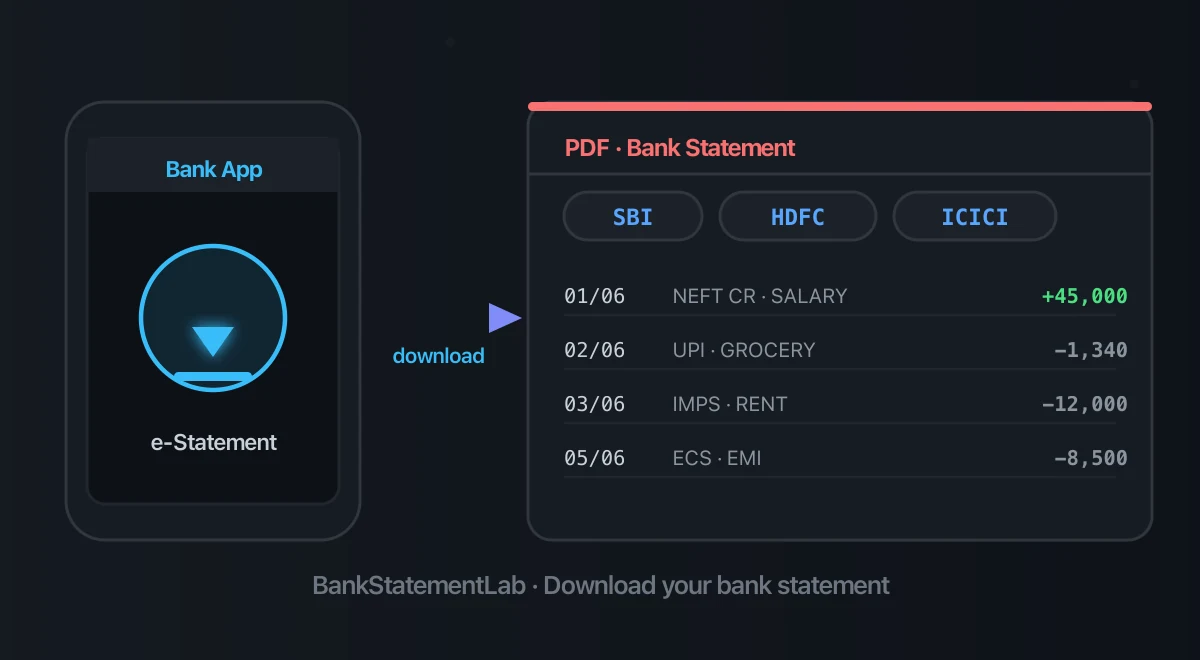
Save hours every week
Turn your bank statements (PDF) into Excel, CSV or OFX, without manual retyping.
To download a bank statement from SBI, HDFC or ICICI, start with the statement section in your bank’s authenticated website or app, then select the account and period. Available dates, formats and delivery methods depend on your account and channel. This guide covers the main download routes and the password instructions to check before opening the file.
We will also cover the part that trips up most people: the password that protects your statement PDF, and what to do with the file once you have it. The password and SBI WhatsApp guidance below was checked against official bank resources on September 22, 2026. Apps, menu labels and password conventions can still change by channel and account type, so the instruction printed in your statement email or download screen is authoritative.
For portal and app downloads, confirm the account, period and available format before saving the file. SMS and WhatsApp services have their own request flows.

What you need before downloading your bank statement
Before you log in, keep a few things handy so the process is smooth:
- Your login credentials — net banking user ID and password, or the MPIN/biometric for the mobile app.
- Your registered mobile number — many flows send an OTP, and WhatsApp and SMS banking only work from this number.
- The statement period you need — know your “from” and “to” dates, or how many months back you need to go (last month, 3 months, 6 months, and so on).
- The password instruction for the document — check the bank’s download screen or delivery message; the required information varies by product and channel.
Check the statement period and delivery method your recipient requires before downloading. A mini statement showing recent transactions may not satisfy a request for a complete six-month statement.
How to download your SBI bank statement
State Bank of India gives you three solid routes: internet banking, the YONO app, and a set of no-net-banking options (SMS, missed call and WhatsApp).
Via SBI Net Banking (e-statement PDF)
Use the statement date selector to check which periods are available for your account.
- Log in to SBI internet banking at the official portal (retail.sbi.bank.in).
- Go to My Accounts & Profile > Account Statement.
- Select the account you want.
- Choose the period — By Date for a custom from/to range, or By Month.
- Pick View, Print or Download, then select your format.
Choose PDF or Excel when offered by the download screen. For archived or specially requested statements, check the applicable account tariff.
Via the YONO app
If you prefer your phone, the YONO app makes it just as easy:
- Log in to YONO.
- Tap Accounts and select the account.
- Choose View Statement.
- Pick your date range (for example, the last 6 months).
- Use the displayed download or email control to obtain the statement. Labels and icons can vary by app version; use NetBanking if the option is unavailable.
Without net banking — SMS and WhatsApp banking
- Six-month statement by SMS: SBI Quick documents
ESTMT <Account Number> <code>to +91 7208933145, where<code>is a four-digit number you choose. That code opens the PDF sent to your registered email address. Check the registration instructions and destination on the official SBI Quick page before sending account details. - WhatsApp Banking: send “Hi” to +91 90226 90226 and follow the bank’s current authentication flow. SBI’s official service page lists Download Account Statement as a PDF service, alongside balance and mini statements. It is not limited to the last five transactions.
For a six-month request, check the period and completeness of the delivered PDF; use net banking or the SBI Quick option if the chat does not offer the required dates.
What is the SBI WhatsApp statement password?
Read the password instruction accompanying that file. SBI’s public WhatsApp page confirms PDF downloads but does not publish one universal password formula. Do not substitute your YONO login password, banking PIN or OTP. The four-digit code documented for SBI Quick SMS applies to that separate service, not automatically to WhatsApp or Excel files.
How to download your HDFC bank statement
HDFC’s available history depends on the account and download channel. Check the period selector in NetBanking; contact the bank if it does not cover the dates you need.
Via HDFC NetBanking
- Open NetBanking from HDFC Bank’s official website and log in.
- Open Account Statements and choose Get Statement.
- Select the account and a preset period or custom dates.
- Download the statement, choosing a format if the screen offers one.
HDFC’s official download guide identifies the numeric Customer ID as the password. Menu labels can vary with the interface version; use the instructions shown on your download screen.
Via the HDFC Mobile Banking app & WhatsApp
In the HDFC Mobile Banking app, sign in and open the account’s statement section. Select an available period and follow the displayed download or email options. Do not assume the app provides the same file formats or historical range as NetBanking; use the browser flow if the required option is missing.
For WhatsApp services, start from HDFC’s official website and use the linked ChatBanking service. Check the current menu for statement options. A balance or mini statement is different from a complete statement covering your requested period.
How to download your ICICI bank statement
ICICI Bank lets you view and download a wide range of history — often several years back — through both internet banking and iMobile Pay.
Via Internet Banking
- Log in to ICICI Net Banking.
- Go to Bank Accounts > e-Statements > View Detailed Statement.
- Select your date range.
- Download. ICICI’s official savings-account statement guide documents up to four years of history. Select one of the formats offered for your account.
Via the iMobile Pay app
- Log in with your MPIN or biometric.
- Go to Accounts and tap View Statement / Download Statement.
- Choose the account and date range.
- Select the available download option and check the saved file format.
For quick checks, use the WhatsApp Banking link provided on ICICI’s official website. Check the available services and statement period in the chat before relying on it for a complete download.
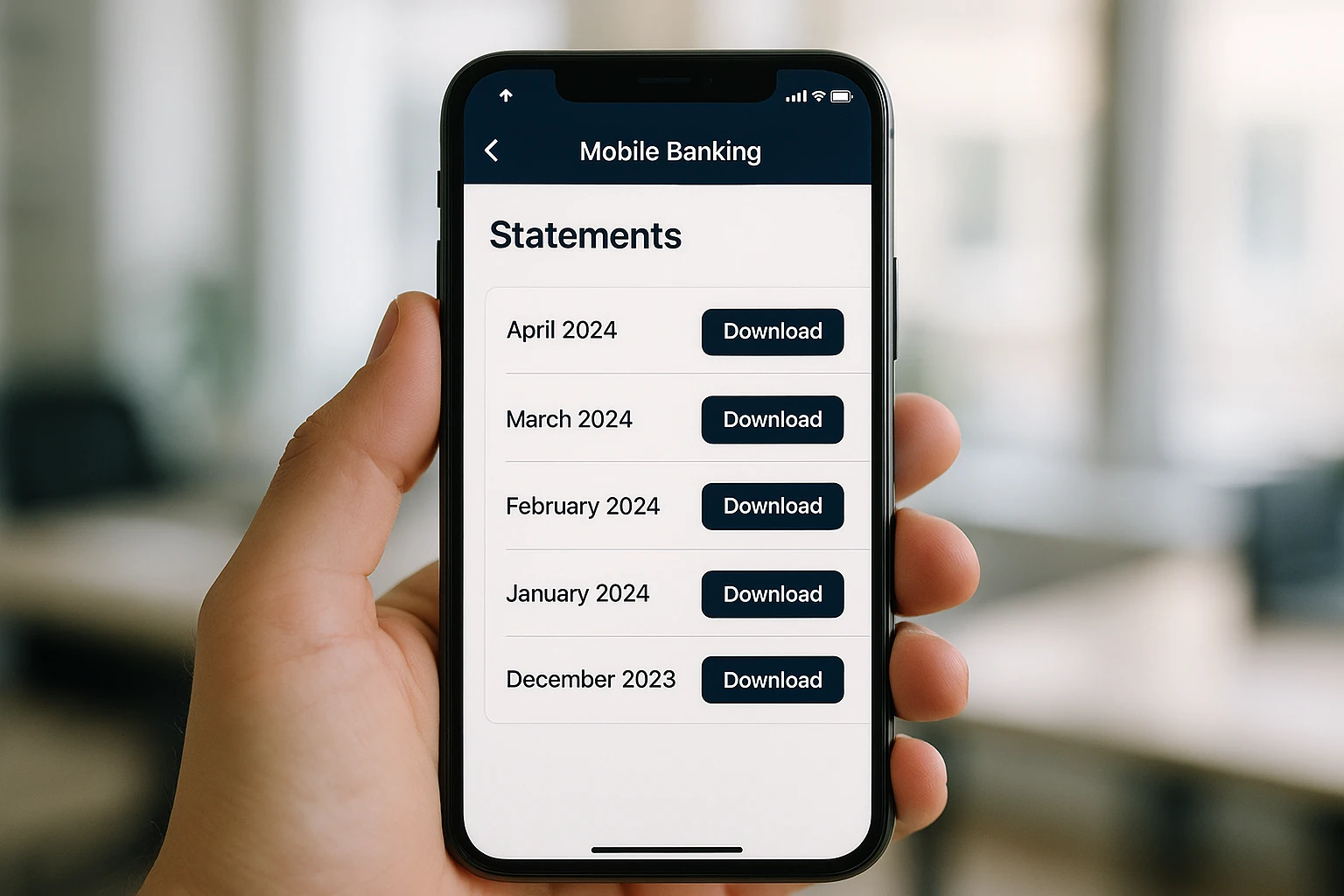
Bank statement PDF is password-protected? Here is the password format
A statement may require a document password, which is separate from the password used to sign in to banking. Identify the account product and delivery channel before applying a rule.
SBI / HDFC / ICICI password formats: what the banks document
| Bank and channel | Instruction to use | Scope |
|---|---|---|
| HDFC NetBanking account PDF | Numeric Customer ID | Confirm against the download message |
| SBI Quick SMS e-statement | Four-digit code chosen in the ESTMT request | Applies to the emailed PDF from this service |
| SBI WhatsApp, YONO or other downloads | Rule supplied with that file | No universal public formula verified for these channels |
| ICICI current-account e-statement | First four letters of the name plus DDMM of birth; incorporation date for corporate accounts | Case-sensitive; follow the document’s instructions |
ICICI documents its current-account rule in its official account FAQ. Do not assume a rule for one product also applies to every savings-account, credit-card or iMobile file.
What is the HDFC bank statement password format?
For an account statement PDF downloaded through HDFC NetBanking, enter your numeric Customer ID, following the download instruction. For example, a Customer ID of 12345678 gives the password 12345678. This is not your NetBanking login password or card PIN. If it fails, confirm the account holder, product and channel before contacting HDFC; card-statement rules need their own instructions.
If you are stuck on a locked file and need to actually use the data inside it, our guide on how to unlock a password-protected statement PDF for extraction walks through the cleanest way to remove that barrier.
What is the password to open an SBI bank statement in Excel format?
Use the password instruction supplied with that Excel download or its covering message. A PDF password formula does not establish the password for an XLS or XLSX file, and there is no verified universal SBI Excel formula in the bank resources checked for this guide. If the instruction is missing, request it through SBI’s authenticated support or download another copy.
How do I open a password-protected Excel statement?
Open the file in a spreadsheet application that supports its encryption and enter the supplied password exactly, including case, leading zeros and any documented separators. If a browser or mobile viewer cannot open it, try desktop Excel or LibreOffice Calc.
A warning that the file extension and format do not match is a separate issue from the password. Verify that the download came directly from your bank, and request another export if needed; do not treat every format warning as safe to dismiss.
How do I remove the password from the Excel statement?
Once the file is open with the correct password, you can save an unlocked copy. In desktop Excel for Windows, go to File > Info > Protect Workbook > Encrypt with Password, clear the password field, confirm, then save. In LibreOffice Calc, use File > Save As and untick Save with password. Treat that unlocked copy the way you would treat the original: it still contains your account number, your balance and your salary, so keep it out of shared folders and delete it when you no longer need it.
How do I download the statement in Excel instead of PDF?
Choose Excel or another spreadsheet format if it appears in the download screen. If the app does not offer it, check the authenticated website: available formats can differ between channels. A PDF download cannot be turned into an Excel workbook by simply changing its filename extension.
If your bank hands you a PDF anyway, which is what most channels do, you can turn that statement into a clean spreadsheet with BankStatementLab instead of retyping the rows by hand.
Which format to choose — PDF vs Excel vs CSV (and why it matters)
The format you pick depends on what you will do with the statement:
- PDF — best for sharing, printing and submitting (loan applications, KYC, visa files). Confirm that the recipient accepts the downloaded PDF for your purpose. The downside: the numbers inside are not easy to sort, filter or total.
- Excel (XLSX) — best when you want to crunch the data: sort transactions, add formulas, build a budget, or hand it to your chartered accountant.
- CSV — a plain, lightweight table for spreadsheets or a compatible accounting-software import, after mapping dates, amounts and columns to the destination’s requirements.
Use the formats actually offered for your account. If only PDF is available, preserve it as the source document and verify any subsequent spreadsheet conversion against it.
So in practice, a huge share of statements end up as a PDF — which is fine for submitting, but painful the moment you actually need the numbers in rows and columns.
How long are statements available, and what does it cost?
A quick reference for how far back each bank typically lets you go online, so you can plan before you log in.
| Bank | Typical online history | Routine monthly download | Older / archived periods |
|---|---|---|---|
| SBI | Check the date selector; SBI Quick documents a six-month request | Check the account tariff | May require a branch request |
| HDFC | Check the account and channel’s date selector | Check the account tariff | Ask about historical-statement options |
| ICICI | Up to 4 years in its documented savings-account flow | Check the account tariff | Ask the bank for older periods |
Online history and charges can differ by account and request type. Check the current tariff before requesting archived periods or certified copies; the date selector in your account determines what is available for immediate download.
Because online history is limited, downloading is only half the job: how long to keep bank statements once you have downloaded them walks through the retention windows for tax, loans and disputes, and how to build an archive you control instead of relying on the bank’s portal.
Common problems and quick fixes
Even a smooth flow can hit a snag. Here are the issues people run into most often and how to get past them.
The OTP never arrives. Check that your phone has network coverage and that you are logging in from the number registered with the bank. If you recently changed your SIM or number, you may need to update it at a branch or via a service request before OTP-based downloads will work.
The download button is greyed out or missing. Check the chosen account, available history and date range, plus any error message. An empty period, account restriction or temporary app problem can affect the controls. Shorten the range, or pick By Month and try a single recent month first to confirm the flow works.
The statement opens but looks blank or scrambled. Open it in a proper PDF reader rather than a browser preview. Browser previews sometimes fail to render password-protected files correctly, and another reader may display the file correctly. If it remains unreadable, obtain a fresh copy from the bank.
You forgot or never knew the PDF password. Re-check the instruction line in the statement email or on the download screen. Use a documented rule only when it applies to that file. If nothing works, your bank’s helpline or branch can confirm the format tied to your account type.
The period you need is older than what is shown online. The available window varies by account and channel, and older periods may not be self-service. In that case, request the older statement through your branch or a service ticket.
A note on security and sharing
Bank statements are sensitive documents: they reveal your balance, your salary, your spending and your account number. A few habits keep you safe.
Only download from the official app or the official net banking URL — never from a link in an unexpected email or SMS. Keep the password on the file when you store or email it, and share the password through a separate channel from the file itself. When you no longer need a copy, delete it from your downloads folder and your email. And if any tool or person asks you to upload a statement, make sure you understand what happens to the file afterwards.
What to do with your statement after downloading (turn the PDF into clean Excel/CSV)
Once you have the PDF, the real work often begins: getting those transactions into a usable spreadsheet. Copy-pasting from a PDF can lose structure: columns collapse, dates merge with amounts, and multi-line entries break apart.
This is exactly the problem BankStatementLab solves. It reads an unlocked bank statement PDF and converts it into Excel, CSV or JSON, with dates, descriptions and amounts separated into columns for review. The interface is localized in 10 languages, but that is not a guarantee for every bank layout: inspect every extracted table against every source page before exporting. The first visible table may not contain the entire document; compare rows, signs and totals with the original and check ambiguous values. A balance match alone does not prove completeness.
BankStatementLab does not accept a PDF while it is still password-protected and never asks for the password. Open the statement locally, save an unlocked copy using your PDF reader, and upload that copy only after checking that it still contains every page.
A few common next steps once your statement is in a spreadsheet:
- Reconcile and analyse — our pillar PDF-to-Excel conversion guide explains the process step by step.
- Handle several months at once — if you downloaded six monthly PDFs, you can batch convert several statement PDFs into one workbook instead of doing them one by one.
- Sort your spending — once the data is in columns, you can categorize transactions automatically for budgeting or bookkeeping.
- Accounting in TallyPrime — use a supported bank-supplied statement file for its Bank Statement import. Tally’s official guidance explicitly excludes CSV or Excel files converted from PDF from that route. A converted workbook can still support manual review; a separate voucher-data import requires the correct accounting fields and mapping.
When you are ready to turn an unlocked statement into a spreadsheet, you can convert it with BankStatementLab and review the extracted rows before export.
Official bank resources checked for this guide
- SBI: account-related services in YONO, including e-statement management
- SBI WhatsApp Banking terms, which identify the bank’s registered WhatsApp number
- ICICI: iMobile services, including statement viewing and download
- HDFC Bank NetBanking terms and the instruction shown inside your authenticated account
Frequently Asked Questions
How can I download my SBI bank statement online?
Log in to SBI net banking, open My Accounts & Profile > Account Statement, select the account, then set the period using By Date for a custom range or By Month, and download the statement as PDF or Excel. In YONO, select the account and open its statement option, then follow the current download or email controls. Menu labels can vary by version.
How do I get my HDFC bank statement PDF from net banking?
In HDFC NetBanking, open Account Statements, choose Get Statement, select the account and period, then download. Use the numeric Customer ID when the PDF asks for its password, as stated in HDFC’s download guide. Follow the current screen if menu labels differ.
How to download last 6 months bank statement?
Open the account statement section and select the required six-month period using the available date selector. If one download cannot cover it, obtain consecutive statements and check for gaps or overlap. Choose the format your bank offers and your recipient accepts; a mini statement is not a substitute.
What is the password to open my bank statement PDF?
Use the rule supplied for that account, product and delivery channel. HDFC documents the numeric Customer ID for NetBanking account PDFs. SBI Quick SMS uses the four-digit code chosen in the ESTMT request. Do not apply either rule to another bank, an Excel download or an SBI WhatsApp file without matching instructions.
What is the password to open an SBI bank statement in Excel format?
Use the password instruction supplied with that Excel file. The bank resources checked for this guide do not establish one universal SBI Excel password or prove it matches the PDF password. If the instruction is missing, obtain it from SBI through an authenticated channel. Use a spreadsheet application that supports the file’s encryption.
Can I get my bank statement on WhatsApp?
SBI’s official WhatsApp service at +91 90226 90226 includes PDF account-statement downloads, not just mini statements. Follow the current chat authentication flow, choose Account Statement and check the period in the result. Read the password instruction sent with the file; the public service page does not establish a universal PDF password.
How to download ICICI bank statement from iMobile?
Open iMobile, sign in, select the account and look for View Statement or Download Statement. Choose the required dates and an available download option. If the file is protected, follow the password instruction supplied with that particular statement; do not assume a credit-card or current-account password rule covers every iMobile download.
Save hours every week
Turn your bank statements (PDF) into Excel, CSV or OFX, without manual retyping.