Save hours every week
Turn your bank statements (PDF) into Excel, CSV or OFX, without manual retyping.
To open a password-protected bank statement PDF, save the file, open it in a PDF reader and enter the password specified in the bank’s delivery message or download screen. There is no universal bank-statement password. Check the account, product, letter case and date format before trying again; your online-banking login password is a separate credential.
Opening a statement for reading and removing its password for a later import are different tasks. This guide explains how to find the correct instruction, diagnose a failed opening attempt and create an authorized working copy while preserving the original.
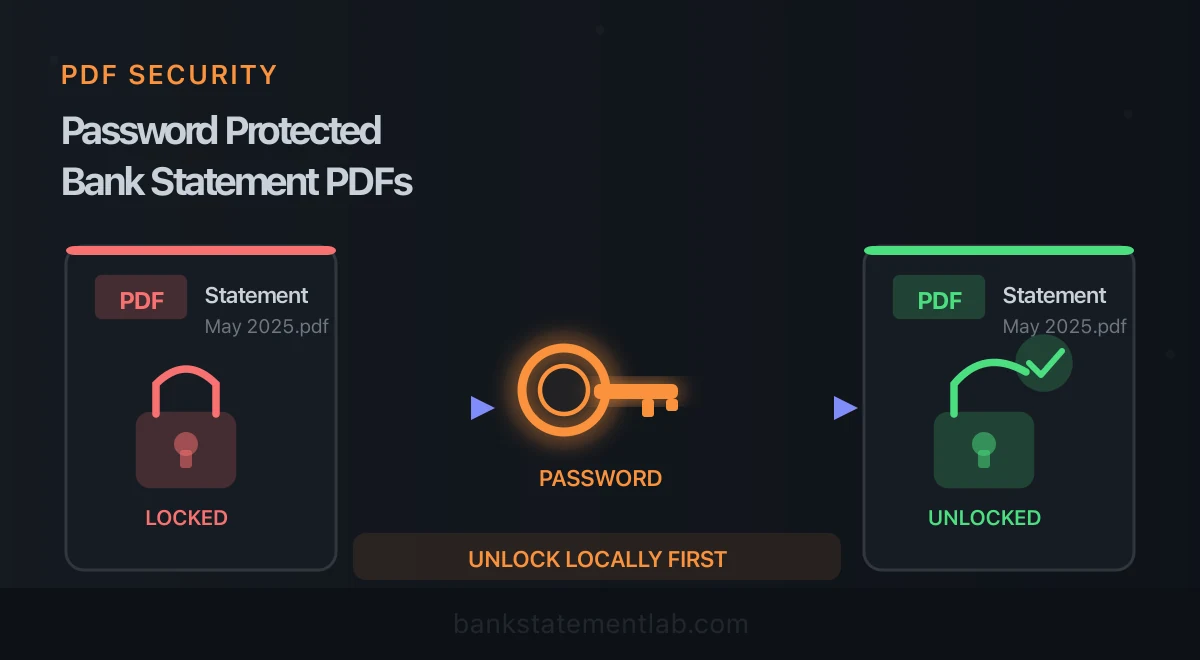
Unlock locally before uploading for extraction. The BankStatementLab extraction service rejects password-protected PDFs and does not receive your password. Our separate browser-local unlock tool uses a password you already know on your device, without sending the PDF or password to the API. Preserve the original, verify the unlocked copy, then upload only that copy when conversion is needed.
How do I open a password-protected bank statement PDF right now?
Use the password rule supplied for that specific statement. There is no universal bank-statement password, and a cracking tool is not a legitimate substitute for the credential or a reissued document. Work through these four steps in order:
- Re-read the delivery message. The password rule is usually printed one line above or below the attachment, or sent in a follow-up email or SMS moments later.
- Type it manually, in the exact case shown. Copying a password out of an email frequently drags an invisible leading or trailing space along with it, which triggers an “incorrect password” error even when the characters themselves are right.
- Confirm the instruction matches the document. Check the account, card or deposit product, delivery channel and statement period; different documents from the same bank can use different rules.
- Download the statement again from inside your online banking session. The portal may provide another PDF copy or a structured CSV/OFX export for the same period.
If none of the four works, the file is not going to open by guesswork: skip ahead to the section on what to do when you have no password at all.
Opening the statement on a phone
Download the attachment from the bank’s message or app before opening it. If the chat preview does not show a password field, open the saved PDF in a reader that supports password-protected documents. Enter the document password there, rather than sending it as a chat message. A preview failure alone does not prove the password is wrong.
For a statement delivered in a ZIP file, unlock the archive first, then open the PDF inside it; the two files can have separate passwords.
Why Banks Password-Protect Statement PDFs
Before diving into solutions, it helps to understand why your bank adds password protection in the first place. It is not there to annoy you — it is a security measure designed to protect your sensitive financial information.
Regulatory and Compliance Requirements
Financial institutions must apply security controls to sensitive customer data. Password protection is one possible document-level control, but the exact measure and legal requirement depend on the institution, jurisdiction and delivery method.
What Is Actually Protected
A password protected bank statement PDF typically contains encryption that prevents the file from being opened without the correct credentials. This is different from a PDF that merely restricts editing or printing. Bank statement passwords usually apply “open” protection, meaning you cannot view the document at all without the password.
Your bank statement contains highly sensitive data: your full name, account number, transaction history, balance, and sometimes your address. If this file were intercepted during an email delivery or accessed by someone on a shared computer, the password acts as a critical barrier.
Common Password Formats Used by Banks
There is no universal format. A bank may derive the password from customer information, but you should use a pattern only when the delivery message or the bank’s official help center identifies it. The entries below are examples of instructions you may encounter, not a list to brute-force.
| Password Format | Description | How to Find It |
|---|---|---|
| Last 4 digits of account number | The final four digits of your bank account | Check your account details in online banking; a card number is a different identifier |
| Date of birth (DDMMYYYY) | Your DOB in day-month-year format | Use the exact format: 01011990 |
| Date of birth (MMDDYYYY) | Your DOB in month-day-year format | Use only if the bank states this order |
| Date of birth (YYYYMMDD) | Your DOB in year-month-day format | Use only if the bank states this order |
| Customer/client ID | Your unique customer reference number | Found in your online banking profile or welcome letter |
| First 4 letters of name + DOB | A combination of your name and birth date | For example: JOHN01011990 |
| Taxpayer identifier | The exact characters requested by the issuer | Use only the documented portion; do not infer a rule from another bank |
| Account number (full) | Your complete account number | Check your checkbook or account opening documents |
| Phone number (last 4 digits) | The last four digits of your registered mobile | The number you registered with your bank |
The issuer’s instruction is the source of truth. If the stated format fails, verify the account and document with the bank instead of trying unrelated personal-data combinations.
For India, our SBI, HDFC and ICICI statement-download guide distinguishes bank-documented password rules from channels where you need the instruction supplied with the file. In particular, do not assume an SBI WhatsApp statement or Excel workbook uses the same password as a PDF from another channel.
How to Find Your PDF Password
If the documented format does not work, use these routes to locate the correct instruction for your password-protected bank statement PDF.
Check the Email or Notification
When your bank sends a statement via email, it often includes the password in a separate email or within the body of the same message. Look carefully at:
- The email that delivered the PDF attachment
- A follow-up email sent moments after the statement (banks sometimes send the password separately for security)
- The subject line or footer of the notification email
- Any SMS or push notification sent around the same time
Visit Your Bank’s FAQ or Help Center
Search your bank’s official website for terms such as “statement password” or “PDF password.” If no published instruction applies to your account and delivery channel, contact the bank rather than relying on a forum answer.
Find the Format Your Specific Bank Uses
Search your bank’s name together with “statement password format” — Chase statement PDF password, Standard Bank statement password, HDFC statement password — and trust results on the bank’s own domain over forum threads, because the rule is not the same everywhere and changes over time. Three variables decide the answer at any institution:
- The delivery channel. A statement pushed to you by email is often protected while the identical statement pulled from the portal is not. Check both before assuming the file has to be locked.
- The product. Card statements and current account statements frequently follow different recipes at the same bank, which is why a password that opens one file fails on the other.
- The instruction line inside the delivery message, which always overrides any general rule you find online, including the ones in this article.
If no public instruction fits, use support reached from the bank’s official website or app. Ask for the rule or a reissued statement for that specific product and channel.
Contact Customer Support
If the documented rule fails, ask your bank’s official support team which of these options is available:
- Confirm the password format used for your statements
- Reset or regenerate your statement with a new password
- In some cases, provide an unprotected version through secure download within your online banking portal
Check Your Account Settings
Some banks allow you to set or change your statement password in your online banking settings. Log in and look under sections like “Statement preferences,” “Document security,” or “Download settings.” You may also find an option to disable password protection entirely for future statements.
Methods to Extract Data from Protected PDFs
Once you have the password, the next step is getting the actual data out of the PDF and into a usable format like Excel, CSV, or JSON. Here are the main approaches, from manual to fully automated.
Method 1: Enter Password and Copy-Paste Manually
The simplest approach is to open the PDF with the correct password, then manually select and copy the transaction data into a spreadsheet. This works for one-off needs but becomes impractical quickly.
Steps:
- Open the PDF in any reader (Adobe Acrobat, Preview, Chrome)
- Enter the password when prompted
- Select the table data with your mouse
- Copy and paste into Excel or Google Sheets
- Manually fix formatting issues (merged cells, misaligned columns, missing decimals)
PDF tables may not copy cleanly: columns can shift, numbers can move and spreadsheet software can reinterpret dates. For a short table you can repair and verify the pasted rows manually; longer statements require proportionally more checking.
Method 2: Remove Protection Locally With Adobe Acrobat or Preview
The quickest route is the browser-local tool to remove a known PDF password without uploading the file. It creates a separate unlocked copy on your device. Adobe’s official instructions provide a desktop alternative once you know the password and are authorized to change the file.
In Adobe Acrobat:
- Open the PDF locally and enter the password.
- Select All tools → Protect a PDF → Set security properties.
- On the Security tab, select Change Settings.
- Clear Require a password to open the document, confirm, and save a separate working copy.
On a Mac, Apple’s Preview permissions guide documents File → Edit Permissions. Open the document with the known password, clear the opening-password requirement, apply the change and save a separate copy. These operations stay on your device; do not use an unknown online unlocking site for a financial document.
If that unlocked copy contains several months or accounts, split the PDF into separate files in your browser before extraction. This keeps each statement period and its balance boundaries together.
Method 3: Use a Dedicated Data Extraction Tool
Specialized tools designed for bank statement processing need a file they can open. Remove the protection locally with the correct password and save an unlocked copy before starting extraction.
That order matters. BankStatementLab rejects a protected PDF and asks for an unlocked copy; it never asks you to hand over the PDF password.
Once the copy opens without a prompt, BankStatementLab can extract its transaction table to XLSX, CSV or JSON. Review the output against the source statement before using it downstream.
This uploaded extraction step is separate from the browser-local unlock tool: the extraction service receives only the accessible working PDF, not its password.
Method 4: Request an Unprotected Version from Your Bank
Some banks offer alternative download options within their online banking portal. You may be able to:
- Download statements in CSV or OFX format directly (no PDF password needed)
- Access a “plain” PDF download without password protection through your secure banking session
- Request your bank to send statements without encryption going forward
This is worth exploring before investing time in extraction workflows, especially if your bank offers direct data export.
Comparison of Extraction Methods
| Method | Requires the known password? | Produces structured rows? | Best for |
|---|---|---|---|
| Manual copy-paste | Yes | Only after manual cleanup | A short, one-off table |
| Adobe Acrobat or Preview | Yes | No; it creates an unlocked PDF copy | Removing protection locally |
| BankStatementLab | Requires an already unlocked PDF | Yes: XLSX, CSV or JSON | Extracting the unlocked statement |
| Bank direct export | Not usually a PDF step | Yes, if the bank offers it | Avoiding PDF conversion entirely |
Statement unlocked and still stuck in PDF form? BankStatementLab can extract its transaction table to XLSX, CSV or JSON for review. 5 credits are included to process your first statements. Create your account →

Common Issues and Troubleshooting
Even with the right approach, you may encounter some obstacles. Here are the most frequent problems and how to resolve them.
Wrong Password or “Incorrect Password” Error
Before contacting your bank, check the instruction and file carefully:
- Check for extra spaces: When copying a password from an email, trailing or leading spaces often sneak in. Type the password manually instead of pasting it.
- Follow the stated format exactly: Use the order and separators in the bank’s instruction instead of cycling through unrelated date formats.
- Match the stated case: If the documented format includes letters, reproduce the capitalization exactly.
- Verify the account number: If the password uses your account number, make sure you are using the correct one. Some banks issue multiple account numbers or reference numbers for the same account.
- Get a current instruction: If the documented value still fails, download the statement again or ask the bank which rule applies to that specific document.
Corrupted or Damaged PDF File
If the PDF will not open even with the correct password, the file may be corrupted. This can happen during download interruptions or email attachment issues.
- Re-download the file from your online banking portal
- Try a different PDF reader (Adobe Acrobat Reader, Foxit, or your web browser’s built-in reader)
- Check if the file size is suspiciously small (a corrupted download often results in a tiny file)
- Ask your bank to regenerate and resend the statement
Scanned (Image-Based) Protected PDFs
Some banks, particularly for older statements, provide scanned images inside a password-protected PDF. Even after entering the password, you cannot select or copy any text because the content is an image, not searchable text.
In this scenario, you need a tool with OCR (Optical Character Recognition) capabilities. OCR converts the scanned image into machine-readable text, and then the extraction process can proceed. Standard copy-paste will not work on these files regardless of whether the password protection has been removed.
Multiple Layers of Protection
Adobe’s copying guidance distinguishes content copying from the permissions that can prevent it. Check those settings before assuming the file needs OCR.
A PDF may have both an “open” password (to view the document) and a “permissions” password (to edit, print, or extract content). If the reader reports that copying or extraction is not allowed, permission restrictions may explain the problem. If those actions are allowed, check whether the page is a scan without searchable text.
BankStatementLab still requires a copy that opens without a password prompt and permits extraction. Use the authorized password and the security settings in Adobe Acrobat or Preview, or ask the document issuer for an unrestricted copy.
Password-Protected ZIP Archives
Some banks send statements as password-protected ZIP files containing PDFs inside. In this case, you need to unzip the archive first using the provided password, and then the PDF inside may or may not have its own separate password. Check your bank’s instructions — they usually clarify whether the protection is on the ZIP, the PDF, or both.
What can I do if I do not have the password at all?
Recover access through the bank or an authorized document owner. This guide and the local tool do not recover unknown passwords. Avoid submitting financial records to an unverified recovery service; instead use one of these routes:
- Download it again from your online banking portal. The archive inside your session holds the same document and is frequently served without protection.
- Ask support to reissue the statement. They can regenerate it, confirm the format applied to your account, and tell you which channel produced the locked copy.
- Export the same period as CSV or a supported financial format if your portal offers it. Verify account, period, row coverage and fields against the statement. CSV can be imported into a spreadsheet with explicit date and identifier types; OFX and QIF need a compatible importer and do not preserve the official statement layout.
- Request the statement in writing or in branch when the account is closed, dormant or inherited — which is the usual reason nobody has the password in the first place.
For accountants and bookkeepers, request an accessible copy through the firm’s approved portal or arrange authorized local opening. A password rule can itself reveal how to obtain the credential, so protect that instruction as well as the password.
How do I add a password to a bank statement PDF myself?
Encrypt the copy you send, not the copy you work from, and deliver the password through a different channel from the file. The browser-local tool can password protect a PDF without uploading it. Adding protection yourself is useful when you have to send a statement to an accountant, a landlord or a lender, and it is also how you re-secure a document after removing the bank’s original password. Desktop and archive alternatives include:
- Adobe Acrobat Pro: open the file and use the protection tool to encrypt it with a password, choosing whether that password is required to open the document or only to edit and copy it.
- macOS Preview: use File → Export → Permissions, require a password to open the document, set the requested credentials, then save a separately named copy. Labels can differ across macOS versions; follow Apple’s linked guide.
- An encrypted archive: use a modern AES-encrypted ZIP or 7z file when the recipient supports it. Archive encryption protects the container, not the extracted PDF, and ordinary ZIP creation does not necessarily add encryption.
Two rules decide whether the protection is worth anything. Never send the password in the same email as the file — use a text message or a phone call — and never reuse a password you use elsewhere, because the recipient now holds it permanently. Remember too that an encrypted PDF has to be opened again before any conversion tool can read it, which is why you protect the copy you send and keep an unlocked working copy in a secure folder.
Best Practices for Managing Bank Statement PDFs
Once you have solved the immediate problem of accessing your password protected bank statement PDF files, it pays to establish a system that prevents future headaches.
Organize with a Consistent Naming Convention
Rename files immediately after downloading them. A clear naming convention saves time when you need to locate a specific statement later.
Recommended format: YYYY-MM_BankName_AccountType.pdf
For example:
2026-01_MyBank_Checking.pdf2026-01_MyBank_Savings.pdf2026-Q4_MyBank_BusinessChecking.pdf
Store Passwords Securely
If you need to keep track of statement passwords, use a dedicated password manager rather than writing them in a text file or sticky note. Most password managers allow you to create a secure note entry for each bank with the password format documented.
Create an Unlocked Archive
After opening a password-protected statement, consider saving an unlocked copy in a secure, encrypted folder on your computer or cloud storage. This eliminates the need to re-enter the password every time you revisit the document. Make sure the storage location itself is properly secured with encryption and access controls.
Set Up Direct Data Exports Where Possible
Check if your bank offers:
- Automatic CSV/OFX exports: Many online banking platforms allow you to download transaction data directly in structured formats, bypassing the PDF entirely.
- API access: Some business banking accounts offer API access for automated data retrieval.
- Aggregation service compatibility: Services that connect directly to your bank can pull transaction data without involving PDFs at all.
Establish a Monthly Workflow
For recurring statement processing, a documented workflow prevents missed steps and reduces errors:
- Download all statements at the start of each month
- Rename files using your naming convention
- Unlock protected PDFs locally with the known password, then upload only the unlocked copies
- Verify extracted data against PDF (spot-check key transactions)
- Import extracted data into your accounting system
- Archive both the original PDF and the extracted data file
This sequence keeps the password on your device and makes the verification step explicit.
Step 5 is where accounting-software requirements show up. If your ledger is QuickBooks Online and the statement comes from Chase, follow the walkthrough for converting an unlocked Chase statement to CSV and importing it manually. BankStatementLab does not create QBO files or post transactions directly.
Frequently Asked Questions
What password does my bank use for its statement PDFs?
There is no universal password. Use the exact rule in the delivery email, SMS or the bank’s official help center; it may refer to an account identifier, customer ID or a stated date format. Do not keep cycling through guessed credentials, and never send the password to BankStatementLab.
Why does the password from my bank’s email not work?
Type the documented value manually to avoid copied spaces, match its case, and confirm that the instruction applies to this account, product and delivery channel. If it still fails, stop guessing and use the bank’s official support channel or download a fresh copy from online banking.
Can I permanently remove the password from a bank statement PDF?
Yes, if you know the current password and are authorized to modify the document. You can remove the known password locally in your browser, follow Adobe’s removal steps, or use Apple’s documented File → Edit Permissions flow in Preview. Save the unlocked working copy in protected storage because it no longer has the PDF’s opening barrier.
Why can I open my bank statement PDF but not copy any text from it?
The PDF may contain scanned pages without a text layer, or its permissions may restrict copying. Failure to select text alone does not distinguish them. Check the reader’s document security or permissions settings first. If copying is allowed but the page is only an image, OCR can create searchable text; review the recognized numbers against the original.
Do I have to unlock a bank statement PDF before extracting the data?
Yes. BankStatementLab rejects a PDF that still requires a password and never asks you to upload or disclose that password. Use an official PDF application on your own device to create an unlocked copy with the password you already know, then upload only that copy. The extracted transaction data can be returned as XLSX, CSV or JSON.
What should I do if my bank sends statements inside a password-protected ZIP file?
Unzip the archive first with the password the bank supplied, then check the PDF it contains, because that file may or may not carry a separate password of its own. Banks usually state in their instructions whether the protection sits on the ZIP, on the PDF, or on both. If the extracted PDF opens with no further prompt, the protection was on the archive only.
What can I do if I have lost the password to my bank statement PDF?
Request authorized access from the bank: download a fresh statement, ask support to reissue it, or obtain a complete structured export if available. Our local tool cannot recover an unknown password. For a closed, dormant or inherited account, ask the bank which documents and access procedure it requires.
How do I password-protect a bank statement before emailing it?
Encrypt the copy you are sending rather than the copy you work from. You can add AES-256 password protection locally in your browser; Adobe Acrobat Pro and macOS Preview provide desktop alternatives. Send the password through a different channel from the file, such as a text message or phone call, so a person who gains access to one message does not automatically receive both the file and its secret.
Conclusion
A password-protected bank statement PDF does not have to be a roadblock. Start with the password instructions from the bank rather than guessing. If they do not work, use the bank’s official help channel or request another copy.
For extraction, the order never changes: unlock locally with the correct password, preserve the original securely, then submit only the unlocked copy. BankStatementLab can turn that copy into XLSX, CSV or JSON under the credit-based plan that matches your document volume.
Ready to extract the unlocked copy? Once the PDF opens without a prompt, BankStatementLab can return its transaction table as XLSX, CSV or JSON. Create your account — 5 credits are included to process your first statements.
Related Articles
Save hours every week
Turn your bank statements (PDF) into Excel, CSV or OFX, without manual retyping.