Try with your file
Drop your bank statement (PDF)
1 file · 100 pages max · Free preview of 2 pages
1 file selected
Save hours every week
Turn your bank statements (PDF) into Excel, CSV or OFX, without manual retyping.
Drop a PDF statement and watch the extraction happen live. Instant preview, no signup required.
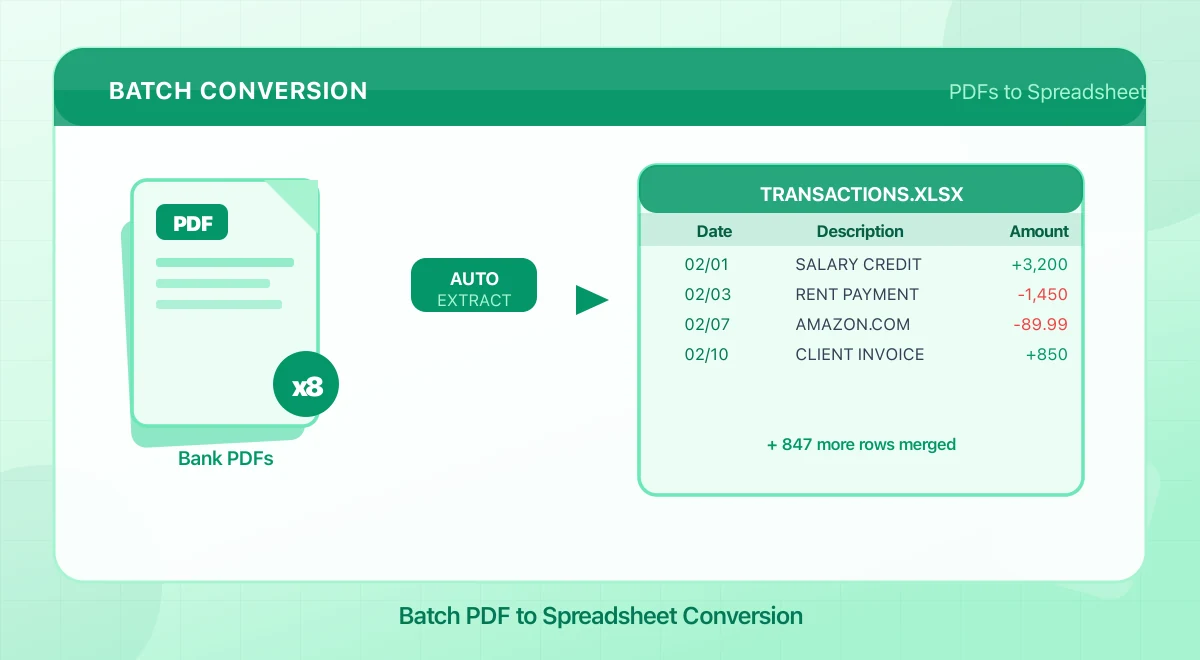
To batch-convert bank-statement PDFs, process each statement as its own document, review the results, then either merge the selected outputs into one table or download one file per statement. The important controls are traceability, consistent columns, validation, and separation between clients—not an unsupported promise that automation will read every row perfectly.
BankStatementLab supports up to 100 files and 100 pages across a signed-in batch, with a 50 MB limit per file and a 500 MB limit per upload request. It exports CSV, XLSX, or JSON. A merged export includes a source_file column; a separate export returns a ZIP containing one output per statement.
Accounting firms and bookkeeping teams that repeat this process across client files can use the dedicated bank statement OCR workflow for accounting firms to review the multi-client controls, source traceability, plan options, and higher-volume path in one place.

Batch-Convert Multiple PDFs in Four Steps
- Create one clearly defined batch. Group statements by client, legal entity, account set, or review period. Avoid mixing unrelated clients merely because room remains in the upload.
- Upload unlocked PDFs. At BankStatementLab, a signed-in batch can contain up to 100 files and 100 pages in total; each file can be up to 50 MB, within a 500 MB total upload request.
- Review every result. Check that each source appears, inspect every extracted table and its columns, and flag errors or partial results before export. The first visible table may not contain all transactions.
- Choose the output shape. Export a merged CSV, XLSX, or JSON file, or download a ZIP with one output per source document.
The merged output uses the union of extracted columns and adds source_file to every row. For multi-table sources it also includes a table label; it is not a bank-issued transaction identifier. That provenance field matters: it lets a reviewer trace an amount back to the statement that produced it even when different banks expose different fields.
A merged table is convenient for analysis. Separate outputs may be safer when accounts require different import templates, currencies, entities, or access permissions.
Prepare the Batch Before Uploading
Use a consistent filename
A useful pattern is:
ClientCode_AccountNickname_YYYY-MM.pdf
For example:
- ACME_Checking4521_2026-01.pdf
- ACME_Savings7890_2026-01.pdf
Use an account nickname or last four digits, not a full account number. A filename should identify the source without creating another unnecessary copy of sensitive data.
Check the documents
Before uploading:
- confirm that every expected month and page is present;
- remove duplicate downloads;
- separate non-statement documents;
- check that scans are upright and readable;
- unlock password-protected PDFs locally;
- note the statement currency and date format;
- record the expected opening and closing balances where available.
If one source PDF contains several statement periods or accounts, split it into separate PDF files locally before building the batch. Keep each closing and opening balance with the correct period.
BankStatementLab rejects locked PDFs. Do not send a banking password to a converter. If needed, follow the local steps in how to unlock a password-protected bank statement.
Keep one client or entity per batch
This makes review, export, access control, and deletion easier. It also limits the effect of selecting the wrong file during an accounting import. A portfolio-wide upload may be technically possible within the limits but still be a poor control choice.
Three Ways to Combine Multiple Statements
1. Manual entry or copy and paste
Manual work remains reasonable for a very small, exceptional set or when the statement is too damaged for automated extraction. It gives the operator direct control, but copying from PDF can merge columns, split descriptions, and lose debit or credit signs.
Use a fixed spreadsheet template and record who entered and reviewed the data. Do not assume manual entry is infallible.
2. A scripted pipeline
Libraries such as pdfplumber, Camelot, or tabula-py can work well for a stable family of text-based layouts. A script can add deterministic validation, standardize dates, and reproduce the same merge.
Its maintenance cost rises when:
- a bank changes headers or column coordinates;
- one client sends a scanned PDF;
- locale-specific dates or decimal separators vary;
- tables continue across page breaks;
- a PDF uses unusual character mappings.
A robust script should detect unsupported layouts and stop for review rather than silently emitting a plausible but incomplete file.
3. A document-extraction service
A dedicated service can handle mixed layouts and scanned documents without a script per bank, then expose results for review. It still needs validation: OCR and document models can confuse characters, signs, dates, or page boundaries.
Choose this route when its supported formats, data handling, cost per page, and review workflow fit your volume and obligations. Evaluate it on your own representative statements rather than a generic accuracy percentage.
If You Already Have One CSV per Statement
Excel Power Query can combine files from a folder and replay the same transformation for new files. Microsoft’s official Combine files overview explains the workflow.
Before appending:
- add a source filename and account identifier;
- map columns to a common schema;
- normalize dates with an explicit locale;
- convert amounts to numeric values;
- choose one debit/credit sign convention;
- preserve currency as a separate field;
- reject files missing required columns.
Do not merge first and try to infer provenance afterward. Once identical-looking rows from several sources are mixed, reconstructing their origin is unreliable.
Validate the Batch
A batch should not move directly from upload to ledger import. Validate at both document and batch level.
Per-document checks
- Every expected source has a result.
- The statement account and period are correct.
- The first and last transaction dates are plausible.
- Debit and credit signs match the source.
- Opening balance plus net movement equals closing balance, where those figures are available.
- Page transitions do not create repeated headers, duplicate rows, or missing continuations.
A useful balance test is:
opening balance + credits − debits = closing balance
Adapt the formula to the statement’s sign convention. A mismatch does not identify the faulty row, but it tells you the extraction is not ready to import. A match is only one control: offsetting omissions can leave the balance unchanged. Compare all source pages and all extracted tables as well.
Batch-level checks
- Every intended source is represented; account for multiple tables or sheets rather than expecting the physical file count to match.
- No filename appears twice unexpectedly.
- Currencies and legal entities are not mixed without explicit columns.
- Required import fields are present.
- Row counts and control totals are documented.
- Exceptions have an owner and resolution status.
Validation time depends on document quality and risk. It is not honest to promise that every batch takes a fixed number of minutes.
Five Common Failure Modes

Mixed layouts
Banks use different labels, column orders, date conventions, and debit/credit representations. A merged output can preserve different optional fields, but downstream accounting imports often require one exact schema.
Control: map the reviewed output to the destination’s template after extraction.
Page breaks
A description may continue on the next line or page, and repeated page headers can look like transactions.
Control: review transitions between pages and run balance or total checks.
Scanned pages
An image-only PDF has no selectable transaction text. OCR or visual document processing is required, and low resolution, skew, stamps, or handwriting can reduce readability.
Control: rescan unreadable pages and inspect critical fields.
Locked PDFs
Encrypted documents cannot enter an unattended extraction flow unless the tool explicitly supports them.
Control: BankStatementLab rejects locked PDFs, so unlock them locally and upload only the temporary unlocked copy you intend to process.
Locale and currency differences
A date such as 03/04/2026 is ambiguous without locale. Commas and periods may represent decimals or thousands, and the same batch may contain several currencies.
Control: keep source locale and currency explicit; never infer conversion rates from the statement layout.
Importing the Result into Accounting Software
CSV is widely supported, but there is no universal bank-import schema. Required headers, date formats, signed amounts, and duplicate detection differ by platform and region.
Use the current destination documentation and a small test import. For example:
- Xero documents manual bank-statement imports and its CSV requirements.
- QuickBooks documents its current manual transaction upload workflow.
BankStatementLab exports CSV, XLSX, JSON, and OFX 1.6 SGML for supported current/checking and savings-account workflows. It does not export QBO or QIF and does not connect directly to those platforms. Validate the output, confirm the destination’s current import requirements, and reconcile a small test import first.
Before a full import:
- back up or work in a test company where possible;
- import a small, known date range;
- confirm date and amount mapping;
- inspect duplicate handling;
- reconcile the imported balance;
- only then import the remaining rows.
Data Handling for Client Batches
A batch contains more financial data than a single statement, so access and retention deserve explicit controls.
For BankStatementLab:
- source-PDF deletion depends on the extraction workflow; successful sources can remain for up to 7 days, so immediate deletion is not guaranteed;
- a failed source may be retained for troubleshooting or retry for up to 14 days;
- signed-in extracted data remains until you delete it manually unless optional automatic deletion is enabled;
- automatic deletion is disabled by default; when enabled, it can be configured from 1 to 30 days and starts at 14 days.
This does not replace your own retention policy. Delete exports from local downloads and shared folders when they are no longer needed, and preserve originals separately if tax, audit, contractual, or legal rules require them. See the full online converter security checklist.
Calculate the Business Case With Your Own Numbers
Avoid generic claims such as “automation saves 30 hours” without measuring the existing workflow. Use a short pilot and calculate:
monthly labor cost = statements per month × average handling minutes ÷ 60 × loaded hourly cost
Then compare:
- current intake, transcription, cleanup, and review time;
- automated upload, exception handling, validation, and import time;
- page-based conversion cost;
- setup, training, and security-review cost;
- rework caused by errors in each method.
Measure a representative mix of banks, scans, and statement lengths. Automation may reduce transcription while leaving review time largely intact, which is still useful but should be reflected honestly.
Use the current pricing page and the extraction estimate shown in your account to calculate page costs, available credits and plan limits. Include retries and review effort in the pilot measurement.
A Repeatable Folder Workflow
A simple controlled structure is:
- Raw: verified source PDFs, read-only where practical;
- Working: temporary unlocked copies and extraction outputs;
- Reviewed: approved files ready for import;
- Imported: import confirmation and reconciliation evidence;
- Archive: originals and records required by the retention schedule.
Track batch date, operator, reviewer, source count, expected period, output count, validation result, and deletion date. This lightweight log is often more valuable than a complicated folder tree.
Compare bank movements with your books
A completed extraction batch can also feed the BankStatementLab reconciliation report. Select processed statements for one review scope, import the accounting export, check proposed matches and export the approved report as Excel, CSV or PDF. Keep clients, accounts and currencies separate; batch extraction alone does not approve their transactions.
Frequently Asked Questions
How many bank statement PDFs can be converted in a single batch?
A signed-in BankStatementLab batch supports up to 100 files and 100 pages in total, with a 50 MB limit per file and a 500 MB limit per upload request. Available credits and document readability also affect whether the batch can be processed. Separating clients or legal entities remains a useful control even when one larger batch fits.
Does a batch conversion produce one spreadsheet or one file per statement?
Both options are available. The merged export creates one XLSX, CSV or JSON file using the union of extracted columns and adds a source_file column. The separate export returns a ZIP with one output per source statement. A source with several extracted tables can produce multiple sheets or CSV files. Review every table before import.
Can I batch convert bank statements from different banks in the same batch?
BankStatementLab can process mixed layouts in one batch, including scanned pages, but each result still needs review. Low-quality or unsupported documents can fail, and different optional columns may require mapping before accounting import.
Why do Python scripts using tabula-py, camelot or pdfplumber break on bank statements?
They can work well for stable text-based layouts, but rules tied to coordinates, headers and locale need tests and maintenance when a template changes or a scan appears. A robust script should detect unsupported inputs and stop for review instead of emitting a plausible partial file.
What happens to password-protected bank statement PDFs during a batch conversion?
BankStatementLab rejects locked PDFs. If you are authorized to process the document, unlock it locally, upload only the temporary unlocked copy and delete that copy when it is no longer needed. Do not give a bank-document password to the converter.
How do I verify that a batch conversion did not lose transactions?
Compare source and output counts, inspect page boundaries, verify dates and signs and reconcile opening balance plus net movement to closing balance where the statement supports it. Inspect every extracted table against every original page and compare printed totals when available. A matching balance alone cannot prove completeness. Validation time varies with document quality and risk.
Can scanned bank statements be processed in the same batch as digital PDFs?
Yes, BankStatementLab can process scans in the same batch as native PDFs. Low resolution, skew, compression and damaged pages can still cause failure or mistakes, so inspect the extracted values against every source.
How should files be named and organised before a batch conversion?
Use a pattern such as ClientCode_AccountNickname_YYYY-MM.pdf, with only a nickname or last four digits rather than a full account number. Separate Raw, Working, Reviewed, Imported and Archive states, and keep a batch log linking the source, review and import evidence.
Conclusion
Batch conversion works best as a controlled pipeline: prepare and separate sources, extract each document, keep provenance, validate every result, map to the destination schema, test the import, and document exceptions.
If you need a merged CSV, XLSX, or JSON file—or a ZIP of separate outputs—create a BankStatementLab account. Start with a representative batch, verify it against the original statements, and scale only after the workflow passes your controls.
For a one-document decision between a general-purpose assistant and a specialized workflow, read Can ChatGPT Convert a Bank Statement PDF to Excel?.
Ready to simplify your accounting?
Eliminate manual entry and focus on analysis and advisory.