Save hours every week
Turn your bank statements (PDF) into Excel, CSV or OFX, without manual retyping.
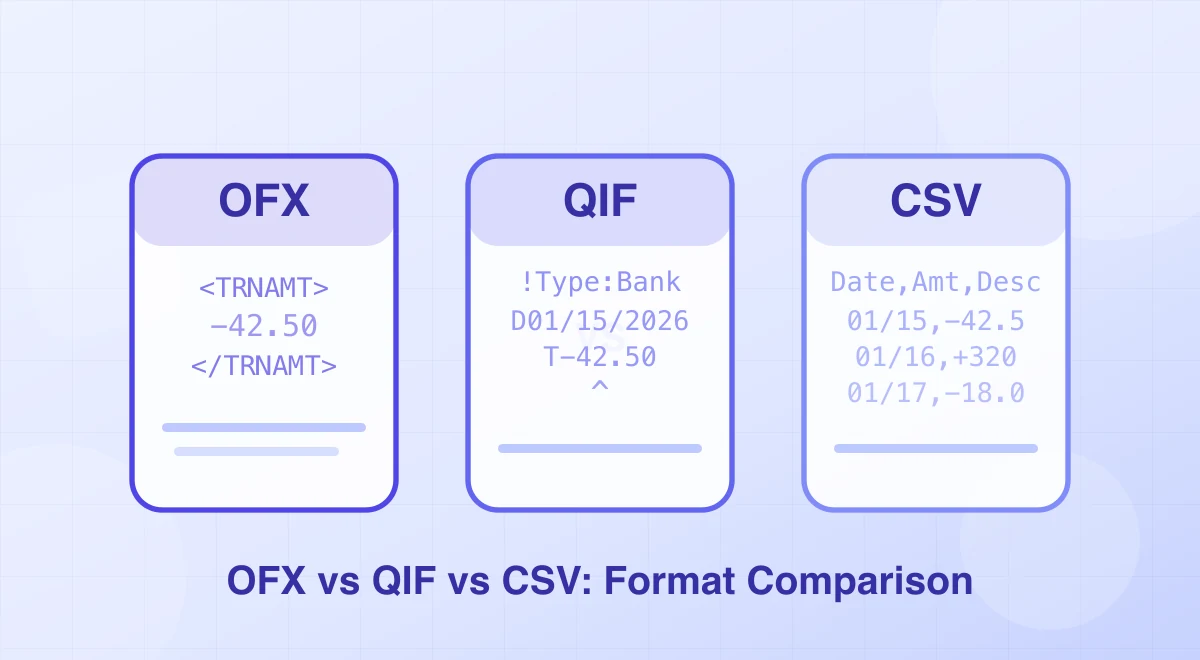
Choose the format your target application and version explicitly accept. OFX is a structured financial-exchange format, QIF is a legacy tag-value format with category support, and CSV is a flexible table whose schema you must map. None is universally best, and renaming one extension to another does not convert the data. If your bank provides a native import format for the destination, use it before rebuilding a file from PDF.
What Are OFX, QIF, and CSV?
Before diving into the comparison, let’s establish clear definitions.
OFX (Open Financial Exchange)
OFX is an open financial-data exchange specification. Older 1.x files use an SGML-style syntax; 2.x uses XML. The FDX OFX Work Group currently publishes OFX Banking 2.3, so parsers may need to handle both generations found in real exports.
An OFX file wraps transactions in structured tags. A bank transaction can use <STMTTRN> with fields such as transaction type, posting date, amount, FITID and optional payee or memo fields. The specification defines the structure, but institutions omit optional fields and importers support different subsets.
Here is a simplified OFX transaction block:
<STMTTRN>
  <TRNTYPE>DEBIT</TRNTYPE>
  <DTPOSTED>20260215120000</DTPOSTED>
  <TRNAMT>-450.00</TRNAMT>
  <FITID>20260215001</FITID>
  <NAME>Office Supplies Inc</NAME>
  <MEMO>Invoice #1042</MEMO>
</STMTTRN>
Key characteristics of OFX:
- Standardized schema enforced by the specification
- Account metadata embedded in the file (routing number, account type, institution ID)
- Statement balance information can be included where the institution populates it
- Transaction typing built in (debit, credit, transfer, ATM, POS, etc.)
- Transaction identifiers (
FITID) that support duplicate checks when stable within an account and honored by the importer
QIF (Quicken Interchange Format)
QIF is a plain-text, tag-value format associated with Quicken and supported by some other finance applications. Each line begins with a tag and transactions end with a caret (^). Import capabilities vary by product and version, so test against the exact destination.
A QIF transaction looks like this:
D02/15/2026
T-450.00
POffice Supplies Inc
MInvoice #1042
^
In this example, D is the date, T is the total amount, P is the payee, and M is the memo.
Key characteristics of QIF:
- Simple tag-value structure, one field per line
- Human-readable in any text editor
- Category and class support (the
Ltag), useful for chart-of-accounts mapping - Category and account constructs are supported, but destination mapping varies
- No OFX-style FITID field, so duplicate handling depends on the importer
CSV (Comma-Separated Values)
CSV is a generic delimited-text format. RFC 4180 documents a common comma-separated form and the text/csv media type, but bank exports still vary in headers, delimiter, quoting, encoding, dates and sign conventions.
A CSV bank statement export might look like this:
Date,Description,Amount,Balance
02/15/2026,Office Supplies Inc,-450.00,12350.75
02/15/2026,Client Payment Received,3200.00,15550.75
Key characteristics of CSV:
- No schema: column names, order, and data types vary from source to source
- Universal readability: every spreadsheet application, database, and scripting language can parse CSV
- Easily editable in any text editor or spreadsheet program
- Source-defined metadata: account or balance columns exist only when the exporter supplies them
- Encoding pitfalls: character sets (UTF-8 vs. ISO-8859-1), decimal separators, and date formats differ by region
Feature-by-Feature Comparison
The table below provides a side-by-side breakdown across the dimensions that matter most to accountants and bookkeepers.
| Feature | OFX | QIF | CSV |
|---|---|---|---|
| Data structure | XML/SGML with nested tags | Flat tag-value pairs | Flat delimited rows |
| Specification | FDX OFX Work Group | Published tag-value conventions; support varies | RFC 4180 documents a common form; exports vary |
| Account metadata | Supported by the schema | Account records can be present | Only if columns or companion metadata provide it |
| Transaction typing | Yes (DEBIT, CREDIT, XFER, ATM, POS…) | No native typing | No native typing |
| Transaction identifier | FITID defined by the format | No standard FITID equivalent | May exist as a source-defined column |
| Balance information | Supported, field population varies | Format/account dependent | Source-dependent |
| Currency support | Supported at statement level | Importer/context dependent | Only if supplied or separately agreed |
| Date format | Specification-defined timestamp form | Locale/importer sensitive | Source-defined and locale sensitive |
| Human readability | Low (verbose XML) | High (simple text) | High (tabular text) |
| File size | Large (XML overhead) | Small | Small to medium |
| Ease of manual editing | Difficult | Easy | Very easy |
| Duplicate detection | FITID helps when stable and honored | Importer heuristic or workflow | Importer heuristic or workflow |
| Multi-account in one file | Supported | Supported in some QIF structures | Possible with an explicit account column, if accepted |
| Extensibility | Schema and importer constrain accepted fields | Published tags and importer support constrain fields | Extra columns require an agreed mapping |
Compatibility is product-specific
Do not infer support from a software category. Current official pages illustrate the variation: QuickBooks Online documents CSV, text, QBO and OFX upload in that edition, while Quicken’s current Windows guidance distinguishes QFX Web Connect from QIF and imposes edition/account limitations. Check the help page for the exact country edition and version immediately before export.
Need structured data from a PDF? BankStatementLab exports Excel, CSV, JSON and OFX 1.6 SGML for supported current/checking and savings-account workflows, but not QIF. Review the extracted rows and test the destination before importing a full period. Try it →
Which Format Should You Choose?
Start with the destination’s current import documentation and a small backup-tested sample.
Choose OFX when:
- The destination explicitly accepts OFX. Structured fields and FITID can reduce mapping and duplicate risk when the institution populates them consistently.
- You have tested the exact institution export. Confirm version, account identifiers, date range, signs and optional fields before bulk import.
- You need explicit account currency. OFX carries statement currency, but support for foreign-currency transaction details still depends on the export and importer. Keep different account currencies separate unless the destination explicitly supports them.
- You can validate the result. Structure reduces ambiguity but does not guarantee correct source data or importer behavior.
Choose QIF when:
- Your exact destination accepts QIF for that account type. Current product support is version- and edition-specific.
- You want to include category mappings in the file. QIF’s
Ltag lets you pre-assign transactions to chart-of-accounts categories before import, which can save time if your software honors those mappings. - You can review duplicates and mappings. Back up the destination and import a small non-overlapping range first.
Choose CSV when:
- You need to review, edit, or transform data before import. CSV is the easiest format to open in a spreadsheet, clean up, add columns, split or merge fields, and re-save. For accountants who need to reclassify transactions or add annotations before importing, CSV is unmatched.
- You are building custom integrations or scripts. Parsing CSV programmatically is trivial in every language. If your workflow involves Python, R, or even Excel Power Query, CSV is the most frictionless input.
- Your accounting software does not support OFX or QFX. Some niche or regional platforms only accept CSV. In those cases, it is your only option for manual import.
- You need to share data with non-technical stakeholders. Anyone can open a CSV file. No specialized viewer is needed.
- You are performing ad hoc analysis. For quick pivots, filters, or visual inspection in a spreadsheet, CSV is the fastest path from bank data to insight.
Quick Decision Table
| Your Situation | Recommended Format |
|---|---|
| Destination supplies a native bank feed or export | Use that supported path first |
| Destination explicitly accepts OFX/QBO/QFX | Use the exact accepted format |
| Manual review before import | CSV |
| Destination explicitly documents QIF for the account | QIF |
| Custom scripting or data pipeline | CSV |
| Need category pre-mapping in file | QIF only when the destination honors its category fields |
| Sharing with colleagues for review | CSV |
| Multi-currency environment | Use a format and import path that explicitly preserve currency |
| Spreadsheet-based analysis | CSV |
Common Pitfalls When Working with Bank Statement Formats
Even experienced bookkeepers stumble on these issues. Knowing them in advance saves hours of troubleshooting.
1. Date Format Mismatches in CSV
CSV files carry no metadata about how dates are formatted. A value like 01/02/2026 could mean January 2 or February 1, depending on whether the source uses MM/DD/YYYY or DD/MM/YYYY. When you import a CSV, always verify the date interpretation settings in your accounting software. A single misread date can cascade into an entire month of misaligned transactions.
Mitigation: Before importing, open the CSV and check a few transactions against your bank’s online portal to confirm that dates parse correctly. Import dates as text first, establish the source day/month order, then parse with an explicit locale and export the required pattern. Changing display formatting or replacing separators cannot repair a date already misinterpreted on opening.
2. Character Encoding Issues
Bank statement files can arrive in different encodings: UTF-8, ISO-8859-1, Windows-1252, and others. If your software assumes one encoding but the file uses another, special characters (accented letters, currency symbols, non-Latin characters) will display as garbled text or cause import failures.
Mitigation: If you see broken characters after opening a file, re-open it with explicit encoding selection. Most text editors and spreadsheet applications allow you to specify the encoding on open or import.
3. Assuming All OFX Files Are Identical
While OFX is standardized, not all financial institutions implement every optional field. Some OFX exports omit payee names, memo fields, or even transaction types. Others use version 1.x (SGML-based) rather than 2.x (XML-based), and the two have subtle structural differences. Do not assume that an OFX file from one source will have the same richness as one from another.
Mitigation: Open a sample OFX file in a text editor before building any automated import workflow around it. Confirm which fields are populated and handle missing optional fields gracefully in your process.
4. Losing Data Precision in Spreadsheet-Opened CSV
When you double-click a CSV file, your spreadsheet application may auto-detect column types and silently modify data. Long numeric strings (like transaction reference numbers) can be converted to scientific notation. Leading zeros in identifiers get stripped. Date columns may be reformatted to the spreadsheet’s locale.
Mitigation: Always use your spreadsheet’s dedicated “import” or “open as text” function rather than simply double-clicking the file. This gives you explicit control over how each column is interpreted.
5. QIF Duplicate Imports
QIF has no standard OFX-style FITID. Reimporting an overlapping period can create duplicates, depending on the destination’s matching rules. OFX also needs controls: edited rows, changed account identifiers, unstable FITIDs, or an importer that ignores them can defeat duplicate checks.
Mitigation: Track which QIF files you have imported and for which date ranges. Some accounting applications offer a “check for duplicates” step during QIF import, but this relies on heuristic matching (same date, same amount) rather than a definitive ID, so it is not foolproof.
How to Convert Between Formats
In practice, you will often receive bank data in one format and need it in another. Here are practical approaches for the most common conversions.
CSV to OFX
CSV-to-OFX conversion requires mapping transaction columns and verified account context into the syntax the destination accepts: SGML-style OFX 1.x or XML-based OFX 2.x. Renaming the CSV extension is insufficient.
- Dedicated conversion tools exist specifically for this purpose and handle the structural transformation, date normalization, and tag generation automatically.
- Scripting approach: Use a parser and writer that support the required OFX version. Validate account metadata, full dates, signed decimal amounts, and stable transaction identifiers before testing the generated file.
- Key challenge: You will need to supply account metadata (bank ID, account number, account type) that does not exist in the CSV. Most conversion tools prompt you for this information.
OFX to CSV
This conversion flattens structured financial records into a table. Preserve account identity, currency, and original transaction identifiers as columns or companion metadata so the result remains interpretable.
- Open the OFX file in accounting software and export as CSV. Many applications support this path.
- Choose a version-aware parser. OFX 2.x can be parsed as XML; SGML-style OFX 1.x needs an OFX-aware parser or a validated normalization step. A generic XML parser is not sufficient for every
.ofxfile. - Key challenge: Decide which OFX fields to include as CSV columns. Not all fields may be relevant to your use case.
QIF to CSV
QIF’s simple text structure makes it straightforward to convert to CSV.
- Text processing: A short script can read each QIF transaction block (delimited by
^), parse the tag-value pairs, and write them as CSV rows. - Spreadsheet import: Some spreadsheet applications can open QIF files directly with the right import settings, though this is not universal.
- Key challenge: Preserve split-category lines and transfer/account context before flattening. Decide whether a split becomes several allocation rows or remains one bank movement; otherwise totals can be duplicated. Resolve the source date convention before reformatting.
PDF to Any Format
Many statements arrive as PDFs. A text PDF may contain machine-readable characters but still lack a reliable table structure; a scanned PDF also needs OCR. Extract first to a supported tabular format, validate dates, signs, balances and row counts, then map to the destination format only if necessary.
BankStatementLab produces CSV, Excel, JSON and OFX 1.6 SGML for supported current/checking and savings accounts. It does not currently generate QIF, QBO or QFX. The OFX workflow collects and validates the required account context, but the output must still be tested and reconciled in the exact destination.
Conversion Best Practices
- Always validate after conversion. Open the output file, spot-check a handful of transactions against the original, and confirm that dates, amounts, and descriptions survived intact.
- Preserve the original file. Never overwrite your source data. Keep the original export alongside the converted version.
- Document your mapping. If you map CSV columns to OFX fields (or vice versa), record which source column maps to which target field. This documentation saves time when you repeat the process next month.
Compare bank movements with your books
Choose the import format separately from the comparison report. BankStatementLab reconciliation compares processed statements with an accounting export, offers suggested pairs to review and approve, and exports Excel, CSV or PDF. OFX is for transferring bank transactions; the report records the comparison and its outstanding items.
Conclusion
OFX offers richer financial structure, QIF carries useful legacy categories, and CSV is easiest to inspect and map. The correct choice is the one the destination accepts with the fields your workflow needs. Test a small date range, inspect duplicates and totals, then import the remainder.
The format only matters, of course, if the data inside it is accurate. Whether your bank statements arrive as PDFs, scanned images, or electronic exports, getting clean, structured data into the right format is the foundation of efficient bookkeeping.
Ready to extract a PDF into a reviewable table? BankStatementLab delivers CSV, Excel or JSON. Validate the output and confirm the destination’s import schema before loading it into accounting software. Start your conversion →
Ready to prepare your OFX export?
Turn a processed statement into an OFX file, review the data, then test the import in your target software.