Save hours every week
Turn your bank statements (PDF) into Excel, CSV or OFX, without manual retyping.
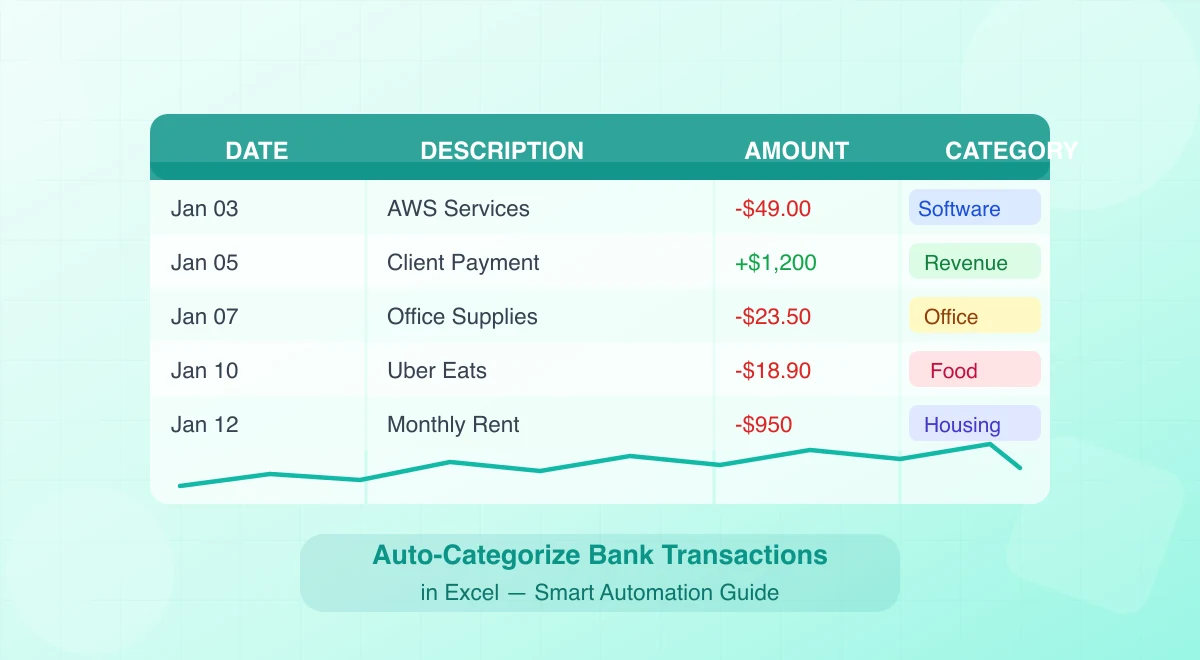
To auto-categorize bank transactions in Excel, keep a priority-ordered keyword table, return the first match with a formula, and route every unmatched or ambiguous row to review. A pivot table summarizes categories but does not categorize them. This workflow produces bookkeeping suggestions—not tax conclusions—and the totals still need to reconcile to the source statement.

Why Categorizing Bank Transactions Matters
Before diving into formulas, let’s clarify why categorization is worth the effort in the first place. Raw transaction data is just noise until you organize it into meaningful groups. Here is what proper categorization unlocks:
- Cleaner bookkeeping. When every transaction has a category, your books close faster at month-end. You spend less time reconciling and more time on actual work.
- Smarter budgeting. Category totals let you see exactly where money goes. You can spot overspending on subscriptions or identify your most profitable revenue stream at a glance.
- Easier tax preparation. When tax season arrives, you need expenses sorted by type. If your transactions are already categorized, generating the numbers your accountant needs takes minutes, not days.
- Cash flow visibility. Grouping transactions by category reveals patterns over time — seasonal dips, growing costs, or clients who consistently pay late.
Common Transaction Categories
Here is a reference table of categories that most freelancers and small business owners find useful. You can customize this list to match your business:
| Category | Examples of Transactions |
|---|---|
| Revenue / Sales | Client payments, invoice deposits |
| Rent / Lease | Office rent, coworking space fees |
| Software & SaaS | Accounting tools, design software, hosting |
| Office Supplies | Stationery, printer ink, desk accessories |
| Travel & Transport | Fuel, train tickets, parking fees |
| Meals & Entertainment | Client lunches, team dinners |
| Professional Services | Legal fees, accounting, consulting |
| Insurance | Business liability, health coverage |
| Utilities | Internet, phone, electricity |
| Bank Fees & Interest | Service charges, overdraft fees |
| Taxes | Estimated payments, VAT remittances |
| Miscellaneous | Uncategorized or one-off transactions |
Keep this table handy. You will use it as the foundation for the lookup table in Method 1.
Method 1: Using Excel Formulas to Auto Categorize Transactions
The lookup pattern works across many Excel versions, but formula behavior differs between legacy array formulas and current dynamic-array Excel. Test the workbook in the version your team uses.
Step 1: Set Up Your Transaction Data
Your bank statement data should be organized in a table with at least these columns:
| Column A: Date | Column B: Description | Column C: Amount | Column D: Category |
|---|---|---|---|
| 01/15 | AMZN MKTP US | -45.99 | (formula goes here) |
| 01/15 | DEPOSIT - CLIENT PAYMENT | 2,500.00 | (formula goes here) |
| 01/16 | GOOGLE *WORKSPACE | -14.40 | (formula goes here) |
| 01/17 | FUEL STATION #4421 | -52.30 | (formula goes here) |
Column D is where the magic happens. But first, you need the lookup table.
Step 2: Create a Keyword-to-Category Lookup Table
On a separate sheet (or to the right of your data), create a two-column table. Column 1 holds a keyword that appears in the transaction description. Column 2 holds the category you want assigned.
| Keyword (Column F) | Category (Column G) |
|---|---|
| AMZN | Review receipt |
| Software & SaaS | |
| ADOBE | Software & SaaS |
| FUEL | Travel & Transport |
| UBER EATS | Review meal purpose |
| UBER TRIP | Travel & Transport |
| DEPOSIT - CLIENT | Revenue / Sales — verify invoice |
| PAYMENT | Review transfer or payment |
| RENT | Rent / Lease |
| INSURANCE | Insurance |
| LEGAL | Professional Services |
The more keywords you add over time, the more accurate the system becomes. Start with your most frequent transactions and expand from there.
Step 3: Write the Categorization Formula
Now, in Column D of your transaction data, enter this formula (assuming your keyword table is in F2:G20):
=IFERROR(INDEX($G$2:$G$20,MATCH(1,($F$2:$F$20<>"")*ISNUMBER(SEARCH($F$2:$F$20,B2)),0)),"Uncategorized")
Important: This is an array formula. In older versions of Excel, you must press Ctrl + Shift + Enter instead of just Enter. In Excel 365 or later, pressing Enter works normally because these versions handle dynamic arrays natively.
Here is what each part does:
- SEARCH($F$2:$F$20, B2) — Checks if any keyword from your lookup table appears inside the description in cell B2. SEARCH is case-insensitive, which is ideal for messy bank descriptions.
- ISNUMBER(…) — Converts the SEARCH results into TRUE/FALSE. TRUE means the keyword was found.
- ($F$2:$F$20<>"") — Excludes empty keyword cells, which SEARCH would otherwise match in every description.
- MATCH(1, …, 0) — Finds the first nonblank matching rule. Put specific rules before general ones.
- INDEX($G$2:$G$20, …) — Returns the category from the matching row.
- IFERROR(…, “Uncategorized”) — If no keyword matches, the transaction is labeled “Uncategorized” so you can review it later.
Step 4: Drag the Formula Down
Copy cell D2 and paste it down to all your transaction rows. Every transaction with a matching keyword will now have its category filled in automatically.
Alternative: Nested IF + SEARCH (Simpler but Limited)
If you only have a handful of categories, a nested IF formula can work:
=IF(ISNUMBER(SEARCH("AMZN", B2)), "Review receipt",
 IF(ISNUMBER(SEARCH("GOOGLE", B2)), "Software & SaaS",
 IF(ISNUMBER(SEARCH("FUEL", B2)), "Travel & Transport",
 IF(ISNUMBER(SEARCH("DEPOSIT - CLIENT", B2)), "Review client receipt",
 "Uncategorized"))))
This approach is easier to read but becomes unwieldy beyond 7-10 categories. The INDEX/MATCH method from Step 3 is far more scalable.
Formula Comparison Table
| Formula Approach | Best For | Scalability | Ease of Maintenance |
|---|---|---|---|
| Nested IF + SEARCH | Few categories (under 10) | Low | Must edit formula each time |
| INDEX/MATCH + SEARCH | Many categories (10-100+) | High | Just add rows to lookup table |
| XLOOKUP + SEARCH (Excel 365) | Modern Excel users | High | Cleanest syntax |
Bonus: LET and XMATCH for current Excel
In current Excel, LET can make the first-match rule easier to read:
=LET(
  desc, B2,
  keywords, $F$2:$F$20,
  categories, $G$2:$G$20,
  IFERROR(INDEX(categories, XMATCH(1, (keywords<>"")*ISNUMBER(SEARCH(keywords, desc)), 0)), "Uncategorized")
)
Use English function names and comma separators as shown; localized Excel may require translated names and semicolons. SEARCH treats * and ? as wildcards: escape a literal character with ~, or avoid it in your keyword list. See Microsoft’s SEARCH documentation.
The IFERROR branch is important: without it, a row with no keyword match returns an error instead of Uncategorized.
Need clean transaction rows before applying the rules? BankStatementLab extracts statement data to Excel, CSV or JSON. Categorization remains in your workbook and review process. Try it →
Method 2: Pivot Tables for Transaction Analysis
Once your transactions are categorized (whether by formula or manually), pivot tables become your most powerful analysis tool. A pivot table can summarize hundreds of transactions into a clear financial overview in seconds.
Step 1: Format Your Data as a Table
Select your entire transaction dataset (including headers) and press Ctrl + T to convert it into an Excel Table. Use this Table as the PivotTable source so added rows are included when you refresh the PivotTable.
Step 2: Insert a Pivot Table
- Click anywhere inside your table.
- Go to Insert > PivotTable.
- Choose to place the pivot table on a new worksheet.
- Click OK.
Step 3: Configure the Pivot Table
Drag and drop fields into the pivot table areas:
- Rows area: Drag the Category field here. This creates one row per category.
- Values area: Drag the Amount field here. Choose Sum in Value Field Settings. If Excel selects Count, first convert the amounts to numeric values; formatting text as currency does not convert it.
- Columns area (optional): Drag the Date field here and group it by month to see a monthly breakdown.
Your pivot table now shows total spending and revenue per category. At a glance, you can see that you spent a certain amount on Software & SaaS or that Revenue / Sales totaled a certain amount for the period.
Step 4: Add a Pivot Chart
With your pivot table selected, go to Insert > PivotChart and choose a bar chart or pie chart. This gives you an instant visual breakdown of where your money goes — perfect for monthly reviews or presentations to partners.

Pro Tips for Pivot Tables
- Filter by date range. Use the Report Filter area to add the Date field and filter by specific months or quarters.
- Sort by amount. Right-click any value in the pivot table and select Sort > Largest to Smallest to quickly spot your biggest expense categories.
- Refresh regularly. When you add new transactions to your source table, right-click the pivot table and choose Refresh to update the numbers.
- Use slicers. Insert a Slicer (Insert > Slicer) for a visual filter. This is especially useful if you share the file with a business partner or accountant.
Common Categorization Mistakes and How to Fix Them
Even with formulas in place, errors can creep in. Here are the most frequent pitfalls and how to avoid them:
1. Keywords That Are Too Generic
A keyword like “PAY” will match “PAYMENT FROM CLIENT” (revenue) but also “PAYPAL SUBSCRIPTION” (expense). The fix: use more specific keywords. Use verified merchant-specific rules, payment direction and receipts. “PAYPAL” can represent a purchase, refund or transfer; “PAYMENT FROM” can be a loan or owner contribution rather than revenue.
2. Overlapping Keywords
If your lookup table contains both “UBER” and “UBER EATS”, a description containing “UBER EATS” matches both. The formula returns whichever matching rule appears first. Make sure your keyword list does not have redundant entries that could cause conflicts. Order your keywords from most specific to least specific.
3. Ignoring “Uncategorized” Transactions
The whole point of the “Uncategorized” fallback is to flag transactions that need your attention. Make it a habit to filter for “Uncategorized” at the end of each month and either:
- Add new keywords to your lookup table, or
- Manually assign a category for one-off transactions.
4. Forgetting to Update the Lookup Table
Your spending patterns change. New vendors appear. Old ones disappear. Review your lookup table quarterly and add keywords for any recurring transactions that keep landing in “Uncategorized.”
5. Mixing Personal and Business Transactions
If your bank account handles both personal and business transactions, add a “Personal” category to your lookup table. This way, personal expenses are clearly separated and will not inflate your business expense totals.
Going Further: Automating the Entire Workflow
The formula-based approach works well, but it assumes your bank statement data is already in Excel. For many freelancers and small business owners, that first step — getting the data out of a PDF bank statement and into a clean spreadsheet — is the real bottleneck.
Manually copying numbers from a PDF is tedious and error-prone. Copy-paste often mangles columns, merges cells unpredictably, and drops decimal points. And if you receive statements from multiple accounts, the problem multiplies.
This is where BankStatementLab fits into your workflow. Instead of manually extracting data, you can:
- Upload your bank statement PDF to BankStatementLab.
- Review every extracted table against the original pages, checking dates, descriptions, amounts and signs. Column layouts depend on the source; a matching balance alone does not prove completeness.
- Download CSV or Excel. Import CSV through Data > From Text/CSV, selecting the right locale for dates and decimals and Text for identifiers.
- Apply your categorization formulas to the clean data using the methods described above.
Combining extraction with Excel rules separates two jobs: BankStatementLab creates transaction rows, and your controlled keyword table suggests categories. Review exceptions and reconcile totals before posting anything to the ledger.
If you want that pipeline described from the PDF onwards — including the accounting-software route, sorting a full year for tax deductions, and turning the result into a profit and loss — read the complete PDF-to-categorized-spreadsheet workflow.
The Combined Workflow
Here is what the full process looks like:
- Receive your bank statement (PDF).
- Upload to BankStatementLab for extraction.
- Download clean CSV/Excel file.
- Open in Excel — your lookup table and formulas are already set up.
- Categories populate automatically via INDEX/MATCH.
- Refresh your pivot table for an updated financial overview.
- Review any “Uncategorized” transactions and update your keyword list.
If the spreadsheet you are building is for a team rather than for yourself, the same seven steps extend into a full reporting workflow — category totals, policy checks, receipt matching and manager approval — described in our guide to building an automated expense reporting workflow from corporate card statements.
Review a sample of matched rows as well as every unmatched row: a plausible category can still be wrong. Keep transfers, card repayments, loans and owner contributions separate from operating revenue and expenses. Time saved depends on statement quality and how well the rules fit your activity.
Compare bank movements with your books
After reviewing the category rules, check whether the bank movements are present in your books. BankStatementLab’s bank reconciliation report compares processed statements with a ledger export, proposes pairs for approval and exports Excel, CSV or PDF. Approving a match does not approve the category or tax treatment.
Conclusion
Excel rules work best as a repeatable suggestion system with an explicit exception queue. They should never silently decide mixed-purpose, asset or tax-sensitive transactions.
Start with the INDEX/MATCH + SEARCH formula approach. Build your keyword lookup table gradually. Use pivot tables to turn categorized data into actionable financial insights. And when the manual extraction of PDF statements becomes the bottleneck, let BankStatementLab handle the heavy lifting so you can focus on what you do best — running your business.
Ready to create the input table? BankStatementLab extracts statement data into Excel, CSV or JSON. Validate the file, then apply your category rules. Get started →
Save hours every week
Go from PDF to an Excel file ready to use, with no manual data entry.